Showing posts with label javascript. Show all posts

Wednesday, December 29, 2010

Create a javascript ToolTip within 10 minutes for Asp.net page


Please visit my new Web Site https://coderstechzone.com


Sometimes we need to create handy javascript tooltip for client. Here in this article i will show how one can create a javascript tooltip within very short time by using DIV object. To do that here i use a DIV as a tooltip container. When i need to show the tooltip then i have set the DIV visibility style to 'visible' otherwise 'hidden'. Very simple right? Lets start:


Add an Aspx page in your project. Then add the below javascript method:
function DisplayToolTip()
        {
            document.getElementById('divToolTip').style.left = window.event.x;
            document.getElementById('divToolTip').style.top = window.event.y;

            document.getElementById('divToolTip').style.visibility = 'visible';
        }
        
        function HideToolTip()
        {
            document.getElementById('divToolTip').style.visibility = 'hidden';
        }

Now add the below HTML markup code:
<span id="spanName" style="font-weight: bold;border: solid 2px red;" onmouseover="javascript:DisplayToolTip();"
    onmouseout="javascript:HideToolTip();">THIS IS THE SPAN</span>


    <div id="divToolTip" style="position: absolute; visibility: hidden; z-index: 20;
    background-color: white; border: solid 1px Blue;">This is ToolTip Text</div>

Now run the page hope you will get desired output:
Javascript Tooltip

Please note that this script does not run into mozilla firefox but will work in IE & Opera as well. To do that in easy way download built in jquery tooltip which is available in the internet. This is only a faster development technique for IE developers.

Wednesday, August 4, 2010

How to prevent avoid Session Timeouts in an Asp.Net C# vb.net Page


Please visit my new Web Site https://coderstechzone.com


As we knew that its a very big problem specially when developers provide a very large entry page to users. It will be Irritating for users after entering all data & then session timeout occur. To prevent or avoid session timeout problem, there is no fixed or specific or direct way to handle. But one can handle this problem using javascript asynchronous call. But one thing keep in mind that time to execute the javacript method must be less than your session timeout time. Otherwise the method will not work. So, carefully set the time aganist IIS or web.config file session time. The cross-browser javascript method is given below:


<script language="javascript" type="text/javascript"> 
function Prevent_Session_Timeout() 
{ 
var callerurl = "Prevent_Session.aspx"; 

if (window.XMLHttpRequest) 
{ 
xhttp = new XMLHttpRequest() 
} 
else 
{ 
xhttp = new ActiveXObject("Microsoft.XMLHTTP") 
} 
xhttp.open("POST", callerurl, true); 
xhttp.send(""); 

window.setTimeout("Prevent_Session_Timeout();", 60000); 
} 

//Initial calling
Prevent_Session_Timeout(); 
</script> 

Important Notes:
1. Just create an aspx page named Prevent_Session.aspx. Because this page will be internally called by the above javascript method without any reflection to user.
2. You must set the window.setTimeout time parameter which never exceed the session timeout time of your project.
3. Paste the code in your main master page so that you need not write the code for each aspx page.

Script Tested for the following browsers:
1. Internet Explorer (IE)
2. Mozilla Firefox
3. Opera
4. Google Chrome

Monday, April 12, 2010

Add to Favorites (IE) / Bookmark (Mozilla Firefox, Opera) Page Javascript


Please visit my new Web Site https://coderstechzone.com


Developers basically use shortcut command to add a page into favorite list or bookmark list but most of the users does not know how they can add an important page into their favorite list or bookmark list. Thats why if developer add a bookmark link or add to favorite link on important pages so that users can easily bookmark the page. Here in this article i will explain how one can add favorites link or bookmark link in a page using cross browser javascript code. My example will work on Internet explorer, Opera and Mozilla Firefox like below:
Opera_Mozilla Firefox, Internet explorer IE

To implement my example code first add a aspxa page into your project then under HTML head tag add the below javascript method to bookmark or add to favorites:
<script type="text/javascript">
        function Add_Bookmark_Favorite(url,title) 
        {
         if (window.sidebar) 
         { // Mozilla Firefox Bookmark
             //Make sure "Load this bookmark in the sidebar is deselected
          window.sidebar.addPanel(title, url,"");
          return false;
         } 
         else if( window.external ) 
         { // IE Favorites
          window.external.AddFavorite( url, title); 
          return false;
         }
         else if(window.opera && window.print) 
         { // Opera Bookmark
                return !addToFav(url,title)
            }
        }
    </script>

Now add the below link into your asp.net aspx page like below:
<a href="" title="" rel="sidebar" onclick="return Add_Bookmark_Favorite(location.href, document.title);">Bookmark / Add to Favorites</a>

Now run the page and click on the "Bookmark / Add to Favorites" link will popup a window to bookmark this page.

Tuesday, March 9, 2010

How to Show hide toggle display a DIV using javascript


Please visit my new Web Site https://coderstechzone.com


In many cases developers need to show hide or toggle div container based on user requirement. Some of SEO specialists told that hiding a div is against SEO. But I want to tell that if your div appear with unchanged contents by user interaction then it’s ok for SEO. In many cases like you want to display a popup type window (which is basically a div) then you need to show or hide a div. Here in this javascript tutorial I will show you how one can manage show hide div based on user interaction.

There are two ways you can show hide a div:
1. By using CSS style.display property
2. By using CSS style.visibility property

1. By using CSS style.display property:
When you use style.display to control div appearance then in visible time it occupies its area but in hidden time it does not occupy the area. Look at below image.


Cross Browser Javascript Function / Method:
function Show_Hide_By_Display()
    {
        var div1 = document.getElementById("div1");
        if(div1.style.display=="" || div1.style.display=="block")
        {
            div1.style.display = "none";
            
        }
        else
        {
            div1.style.display = "block";
        }
        return false;
    }    

2. By using CSS style.visibility property:
When you use style.visibility to control div appearance then in visible time it occupies its area as well as in hidden time also.


Cross-Browser Javascript Function / Method:
function Show_Hide_By_Visibility()
    {
        var div1 = document.getElementById("div1");
        if(div1.style.visibility=="")
        {
            div1.style.visibility = "hidden";
            
        }
        else
        {
            div1.style.visibility = "";
        }
        return false;
    }    

So based on requirement use one of two javascript function to control the appearance of your div.

The complete source code is given below:
<%@ Page Language="C#" AutoEventWireup="true" CodeFile="Show_Hide_Div.aspx.cs" Inherits="Show_Hide_Div" %>

<!DOCTYPE html PUBLIC "-//W3C//DTD XHTML 1.0 Transitional//EN" "http://www.w3.org/TR/xhtml1/DTD/xhtml1-transitional.dtd">

<html xmlns="http://www.w3.org/1999/xhtml" >
<head runat="server">
    <title>Show Hide Div using Javascript</title>
    <script type="text/javascript">
    function Show_Hide_By_Display()
    {
        var div1 = document.getElementById("div1");
        if(div1.style.display=="" || div1.style.display=="block")
        {
            div1.style.display = "none";
            
        }
        else
        {
            div1.style.display = "block";
        }
        return false;
    }    
    
    function Show_Hide_By_Visibility()
    {
        var div1 = document.getElementById("div1");
        if(div1.style.visibility=="")
        {
            div1.style.visibility = "hidden";
            
        }
        else
        {
            div1.style.visibility = "";
        }
        return false;
    }    
    </script>
</head>
<body>
    <form id="form1" runat="server">
    <div>
    <div id="div1" style="border:2px;border-style:solid;border-color:Red;width:200px">
    This is a DIV. We will toggle based on a Button Click
    </div>
    <asp:Button ID="cmd" runat="server" Text="Click to toggle a DIV" OnClientClick="return Show_Hide_By_Display()" />
    </div>
    </form>
</body>
</html>

Script tested for:
1. Internet Explorer
2. Mozilla Firefox
3. Opera
4. Google Chrome

Monday, March 8, 2010

Display Original Image Size in new or popup window when clicking on the thumbnail Image using javascript


Please visit my new Web Site https://coderstechzone.com


In many cases like photo album application or e-commerce website product display page or e-commerce shopping cart we need to display thumbnail image first and then when user click on this image we want to show the full or original image in a popup window. In this article i will explain how one can display a full or enlarge or zoom image from thumbnail image. The output likes below:


To do that here i am using a javascript method which is given below:
function DisplayFullImage(ctrlimg) 
    { 
        txtCode = "<HTML><HEAD>" 
        +  "</HEAD><BODY TOPMARGIN=0 LEFTMARGIN=0 MARGINHEIGHT=0 MARGINWIDTH=0><CENTER>"   
        + "<IMG src='" + ctrlimg.src + "' BORDER=0 NAME=FullImage " 
        + "onload='window.resizeTo(document.FullImage.width,document.FullImage.height)'>"  
        + "</CENTER>"   
        + "</BODY></HTML>"; 
        mywindow= window.open  ('','image',  'toolbar=0,location=0,menuBar=0,scrollbars=0,resizable=0,width=1,height=1'); 
        mywindow.document.open(); 
        mywindow.document.write(txtCode); 
        mywindow.document.close();
    }

From your aspx page you can use the above javascript method in the following way:
<asp:Image ID="Image1" BorderColor="lightgray" BorderWidth="3px" width="200px" height ="200px"  runat="server" ImageUrl = "Images/blue_flower.jpg" onclick="DisplayFullImage(this);"/>

The complete source code to do the example:
<%@ Page Language="C#" AutoEventWireup="true" CodeFile="Thumbnail_image.aspx.cs" Inherits="Thumbnail_image" %>

<!DOCTYPE html PUBLIC "-//W3C//DTD XHTML 1.0 Transitional//EN" "http://www.w3.org/TR/xhtml1/DTD/xhtml1-transitional.dtd">

<html xmlns="http://www.w3.org/1999/xhtml" >
<head runat="server">
    <title>Thumbnail to original image size</title>
<script type="text/javascript">
    function DisplayFullImage(ctrlimg) 
    { 
        txtCode = "<HTML><HEAD>" 
        +  "</HEAD><BODY TOPMARGIN=0 LEFTMARGIN=0 MARGINHEIGHT=0 MARGINWIDTH=0><CENTER>"   
        + "<IMG src='" + ctrlimg.src + "' BORDER=0 NAME=FullImage " 
        + "onload='window.resizeTo(document.FullImage.width,document.FullImage.height)'>"  
        + "</CENTER>"   
        + "</BODY></HTML>"; 
        mywindow= window.open  ('','image',  'toolbar=0,location=0,menuBar=0,scrollbars=0,resizable=0,width=1,height=1'); 
        mywindow.document.open(); 
        mywindow.document.write(txtCode); 
        mywindow.document.close();
    }
</script>    
</head>
<body>
    <form id="form1" runat="server">
    <div>
        <asp:Image ID="Image1" BorderColor="lightgray" BorderWidth="3px" width="200px" height ="200px"  runat="server" ImageUrl = "Images/blue_flower.jpg" onclick="DisplayFullImage(this);"/>    
    </div>
    </form>
</body>
</html>

Hope now you can enlarge zoom original image from a thumbnail image. Run the above page by modifying image url. The page will display a thumbnail image of size 200*200. Now click on the thumbnail image will popup a window to display the full original size image.

Script tested for:
1. Internet Explorer
2. Mozilla Firefox
3. Opera
4. Google Chrome

Sunday, March 7, 2010

How to detect tab key is pressed by user in javascript


Please visit my new Web Site https://coderstechzone.com


In many times we need to check or detect Tab key from cross browser javascript method to implement some business logic. In this regard here i want to show you how one can detect that user pressed or enter Tab key. One can also detect the TAB key to cancel the action. So you can do lots of work based on checking TAB key depends on user or client requirement.

Keep in mind one thing that TAB Key only fires on onkeydown and the onkeyup event.No onkeypress event is fired.


The below cross-browser javascript method will check or detect tab key pressed and popup an alert message.
function DetectTab(e) 
    {
    var KeyCode = (e.which) ? e.which : e.keyCode
    if(KeyCode==9)
        {
            alert("You have pressed Tab Key.");
        }
    }

For complete example check or read the below HTML Markup code:
<%@ Page Language="C#" AutoEventWireup="true" CodeFile="Detect_Tab_Key.aspx.cs" Inherits="Detect_Tab_Key" %>

<!DOCTYPE html PUBLIC "-//W3C//DTD XHTML 1.0 Transitional//EN" "http://www.w3.org/TR/xhtml1/DTD/xhtml1-transitional.dtd">

<html xmlns="http://www.w3.org/1999/xhtml" >
<head runat="server">
    <title>Check detect user entered Tab Key</title>
    <script type="text/javascript">
    function DetectTab(e) 
    {
    var KeyCode = (e.which) ? e.which : e.keyCode
    if(KeyCode==9)
        {
            alert("You have pressed Tab Key.");
        }
    }
</script>
</head>
<body>
    <form id="form1" runat="server">
    <div>
    <asp:TextBox runat="server" ID="txt" onkeydown="DetectTab(event)"></asp:TextBox>
    </div>
    </form>
</body>
</html>

Please also note that 9 is the key code of TAB key.

Script tested for:
1. Internet Explorer
2. Mozilla Firefox
3. Opera
4. Google Chrome

Tuesday, March 2, 2010

WaterMark in ASP.Net TextBox Multiline TextBox TextArea using JavaScript


Please visit my new Web Site https://coderstechzone.com


Basically developers use watermark textbox to give a small hint to the user to input valid or meaningfull data. We found a lot of way to watermark a TextBox using Javascript but in this article or tutorial i will explain a very simple and easy way to implement watermark in textbox / textarea / multiline TextBox. A sample output is given below:

Watermark TextBox

The main javascript method to implement watermark is:
function WaterMarkFocus(txt, text) 
        {
            if (txt.value == text) 
            {
                txt.value = "";
                txt.style.color = "black";
            }
        }

        function WaterMarkBlur(txt, text) 
        {
            if (txt.value == "") 
            {
                txt.value = text;
                txt.style.color = "gray";
            }
        }
To implement the above sample output add an aspx page into your project then enter the below HTML markup:
<%@ Page Language="C#" AutoEventWireup="true" CodeFile="Watermark_TextBox.aspx.cs" Inherits="Watermark_TextBox" %>

<!DOCTYPE html PUBLIC "-//W3C//DTD XHTML 1.0 Transitional//EN" "http://www.w3.org/TR/xhtml1/DTD/xhtml1-transitional.dtd">

<html xmlns="http://www.w3.org/1999/xhtml" >
<head runat="server">
    <title>How to Implement Watermark TextBox</title>

<script language="javascript" type="text/javascript">
        function WaterMarkFocus(txt, text) 
        {
            if (txt.value == text) 
            {
                txt.value = "";
                txt.style.color = "black";
            }
        }

        function WaterMarkBlur(txt, text) 
        {
            if (txt.value == "") 
            {
                txt.value = text;
                txt.style.color = "gray";
            }
        }
    </script>    

</head>
<body>
    <form id="form1" runat="server">
    <div>
        <asp:textbox ID="txtSearch" Text="Use ; as a separator" onfocus="WaterMarkFocus(this,'Use ; as a separator')" onblur="WaterMarkBlur(this,'Use ; as a separator')"  runat="server" ForeColor="gray" ></asp:textbox>    
        <asp:Button runat="server" ID="cmdButton" Text="Search" />
    </div>
    </form>
</body>
</html>

Hope now one can implement watermark easily. You can apply the above technique for multiline TextBox TextArea as well.

Monday, February 22, 2010

How to read GridView row column data using javascript


Please visit my new Web Site https://coderstechzone.com


In some cases we need to read GridView row column data using javascript specially for search purpose. Also there were lots of reason to read GridView data using javascript. If you can read gridview data from a javascript function then you can implement lot of eye catching interface for your client.

The below javascript function wiil read gridview contents or loop through gridview rows:


function Read_Data ()
    {
        var str='';
        var Grid_Table = document.getElementById('<%= GridView1.ClientID %>');
        for(var row=1; row<Grid_Table.rows.length; row++)
        {
            for(var col=0; col<Grid_Table.rows[row].cells.length; col++)
            {
                if(col==0)
                    if(document.all)
                        str=str+Grid_Table.rows[row].cells[col].innerText;
                    else
                        str=str+Grid_Table.rows[row].cells[col].textContent;
                else
                    if(document.all)
                        str=str+'--'+Grid_Table.rows[row].cells[col].innerText;
                    else
                        str=str+'--'+Grid_Table.rows[row].cells[col].textContent;
            }
            str=str+'\n';   
        }
        alert(str);
        return false;
    }    
If you need to know the gridview row header name then start first loop from 0.

For a complete example you can add an aspx page & copy the below html markup:
<%@ Page Language="C#" AutoEventWireup="true" CodeFile="javascript_GridView_Read.aspx.cs" Inherits="javascript_GridView_Read" %>

<!DOCTYPE html PUBLIC "-//W3C//DTD XHTML 1.0 Transitional//EN" "http://www.w3.org/TR/xhtml1/DTD/xhtml1-transitional.dtd">

<html xmlns="http://www.w3.org/1999/xhtml" >
<head runat="server">
    <title>Read GridView Contents using javascript</title>
<script type="text/javascript">
    function Read_Data ()
    {
        var str='';
        var Grid_Table = document.getElementById('<%= GridView1.ClientID %>');
        for(var row=1; row<Grid_Table.rows.length; row++)
        {
            for(var col=0; col<Grid_Table.rows[row].cells.length; col++)
            {
                if(col==0)
                    if(document.all)
                        str=str+Grid_Table.rows[row].cells[col].innerText;
                    else
                        str=str+Grid_Table.rows[row].cells[col].textContent;
                else
                    if(document.all)
                        str=str+'--'+Grid_Table.rows[row].cells[col].innerText;
                    else
                        str=str+'--'+Grid_Table.rows[row].cells[col].textContent;
            }
            str=str+'\n';   
        }
        alert(str);
        return false;
    }    
</script>
</head>

<body>
    <form id="form1" runat="server">
    <div>
        <asp:GridView ID="GridView1" runat="server" Width="800px" AutoGenerateColumns="False" >
         <HeaderStyle BackColor="Red" Font-Bold="true" ForeColor="White" />
         <RowStyle BackColor="LightGray" />
         <AlternatingRowStyle BackColor="LightGray" />
         <Columns>
             <asp:BoundField DataField="Brand Name" HeaderText="Brand Name" />
             <asp:BoundField DataField="Category Name" HeaderText="Category Name" />
             <asp:BoundField DataField="Product Name" HeaderText="Product Name" />
         </Columns>
        </asp:GridView>
        <br />
        <hr />
        <br />
        <asp:Button runat="server" ID="cmdRead" Text="Javascript to read gridview data" OnClientClick=" return Read_Data();" />
    </div>
    </form>
</body>
</html>
The serverside code is given below:
using System;
using System.Data;
using System.Configuration;
using System.Collections;
using System.Web;
using System.Web.Security;
using System.Web.UI;
using System.Web.UI.WebControls;
using System.Web.UI.WebControls.WebParts;
using System.Web.UI.HtmlControls;

public partial class javascript_GridView_Read : System.Web.UI.Page
{
    protected void Page_Load(object sender, EventArgs e)
    {
        if (!IsPostBack)
        {
            GridView1.DataSource = clsDBUtility.GetDataTable("SELECT B.Name [Brand Name],C.Name [Category Name], " +
                    "P.Name [Product Name] FROM " +
                    "Brand B, Category C, Product P " +
                    "WHERE B.ID=P.BrandID AND C.ID=P.CategoryID Order BY 1,2,3");
            GridView1.DataBind();
        }
    }
}
The output looks like:
javascript to read gridview

Hope now you can read gridview content using javascript. Happy programming.

Script tested for:
1. Internet Explorer
2. Opera
3. Mozilla Firefox
4. Google Chrome

Sunday, February 7, 2010

How to disable multiple button click in Asp.net


Please visit my new Web Site https://coderstechzone.com


Disabling or preventing multiple mouse button click event on Asp.net page is a common task. Specially when you want to develop an e-commerce site client must want to disable the payment button after first click of the user. So that user can't click twice or double or multiple time.Normally we have used an onclick javascript event to diable the button after first click. In Asp.net each serverside control has already a onclick event to do the same thing in asp.net.

Basically my approach is different from others. Here i will register the javascript onclick attributes in the run time means page_load event & after that i give the command to execute the server side event.

To understand what i am trying to do look at the below sequences where when user click on the button i will disable the button & after completion the button will enable soon. If you redirect from this page then no problem.

Prevent_multiple_click

Just use the below line code under page_load event:
cmdSubmit.Attributes.Add("onclick", "this.disabled=true;" + ClientScript.GetPostBackEventReference(cmdSubmit,"").ToString());
Where cmdSubmit is our button which we dont want to click twice or more.

Now complete ths example add a page in your project. The HTML MARKUP code is given below:
<%@ Page Language="C#" AutoEventWireup="true" CodeFile="Disable_Multiple_button_click.aspx.cs" Inherits="Disable_Multiple_button_click" %>

<!DOCTYPE html PUBLIC "-//W3C//DTD XHTML 1.0 Transitional//EN" "http://www.w3.org/TR/xhtml1/DTD/xhtml1-transitional.dtd">

<html xmlns="http://www.w3.org/1999/xhtml" >
<head runat="server">
    <title>How to disable multiple button click</title>
</head>
<body>
    <form id="form1" runat="server">
    <div>
    <asp:Button runat="server" ID="cmdSubmit" Text="Clcik Me" OnClick="cmdSubmit_Click" />
    </div>
    </form>
</body>
</html>
The complete serverside code is given below:
using System;


public partial class Disable_Multiple_button_click : System.Web.UI.Page
{
    protected void Page_Load(object sender, EventArgs e)
    {
        cmdSubmit.Attributes.Add("onclick", "this.disabled=true;" + ClientScript.GetPostBackEventReference(cmdSubmit,"").ToString());
    }
    protected void cmdSubmit_Click(object sender, EventArgs e)
    {
        System.Threading.Thread.Sleep(5000);
        Response.Write("I have clicked : "+DateTime.Now.ToString());
    }
}
Hope now you can restrict or prevent the user from twice or more than one or from multiple mouse click.

Friday, February 5, 2010

Javascript to check multiline textbox max length asp.net C# VB.Net


Please visit my new Web Site https://coderstechzone.com


Most of the asp.net developers knew that maxlength property of textbox will work even the multiline property set to true. But it doesnot work. To check or restrict maxlength of a multiline textbox you have to develop a javascript fucntion. In this article i will show you how you can limit or restrict multine textbox character limit using javascript.

If you are looking for textarea then click here.

Output Like:
maxlength check textbox multiline

The javascript function is given below:
<script type="text/javascript">
        function ismaxlength(objTxtCtrl,nLength)
        {
            if (objTxtCtrl.getAttribute && objTxtCtrl.value.length>nLength)
                objTxtCtrl.value=objTxtCtrl.value.substring(0,nLength)
            
            if(document.all)
                document.getElementById('lblCaption').innerText=objTxtCtrl.value.length +' Out Of '+nLength;
            else
                document.getElementById('lblCaption').textContent=objTxtCtrl.value.length +' Out Of '+nLength;
            
        }
    
</script>
Call javascript from multiline TextBox:
<textbox columns="50" id="txtMultiline" onkeyup="return ismaxlength(this,255)" rows="5" runat="server" textmode="MultiLine"></textbox>    
        
<label id="lblCaption" style="font-family: Tahoma; font-size: 1em; font-weight: bold;"></label>
Complete HTML markup of my example page:
<%@ Page Language="C#" AutoEventWireup="true" CodeFile="Multiline_limit.aspx.cs" Inherits="Multiline_limit" %>

<!DOCTYPE html PUBLIC "-//W3C//DTD XHTML 1.0 Transitional//EN" "http://www.w3.org/TR/xhtml1/DTD/xhtml1-transitional.dtd">

<html xmlns="http://www.w3.org/1999/xhtml" >
<head runat="server">
    <title>How to check mutiline textbox max length using javascript</title>
    <script type="text/javascript">
        function ismaxlength(objTxtCtrl,nLength)
        {
            if (objTxtCtrl.getAttribute && objTxtCtrl.value.length>nLength)
                objTxtCtrl.value=objTxtCtrl.value.substring(0,nLength)
            
            if(document.all)
                document.getElementById('lblCaption').innerText=objTxtCtrl.value.length +' Out Of '+nLength;
            else
                document.getElementById('lblCaption').textContent=objTxtCtrl.value.length +' Out Of '+nLength;
            
        }
    </script>
</head>
<body>
    <form id="form1" runat="server">
    <div>
        <asp:TextBox ID="txtMultiline" runat="server" Rows="5" Columns="50" TextMode="MultiLine" onkeyup="return ismaxlength(this,255)" ></asp:TextBox>    
        <br />
        <label id='lblCaption' style="font-family:Tahoma;font-size:1em;font-weight:bold"></label>
    </div>
    </form>
</body>
</html>
Script tested for:
1. Internet Explorer
2. Mozilla Firefox
3. Opera
4. Google Chrome

Tuesday, February 2, 2010

Javascript to read Master Page and Content Page controls data


Please visit my new Web Site https://coderstechzone.com


In many forums i found that asp.net c# vb.net developers ask expert how to read or access master page control from content page as well as how to get content page control from master page using clientside javascript. Thats why in this asp.net javascript tutorial i will explain how you can read or access content page controls from master page as well as read or access master page controls from content page by client side javascript function.

If you want to read "Read ASP.NET Master Page controls from Content Page and viceversa using server side code" then click here.


To do this example first add a master page in your project. Then add the below controls on master page like below:
<asp:Label ID="lblMaster" runat="server" Text="Master Label"></asp:Label>
<asp:TextBox ID="txtMaster" runat="server"></asp:TextBox>
<asp:Button ID="cmdChild" OnClientClick="return GetContentValue();" runat="server" Text="Read Content TexBox Value" />
Add a content page by attaching the above master page in your project and then add the below controls:
<asp:Label ID="lblChild" runat="server" Text="Child Label"></asp:Label>
<asp:TextBox ID="txtChild" runat="server"></asp:TextBox>
<asp:Button ID="cmdChild" OnClientClick="return GetMasterValue();" runat="server" Text="Read Master TexBox Value" />
Now add the below javascript method or function in the master page head section to read content page textbox control data like below:
<script type="text/javascript">
function GetContentValue()
{
    alert(document.getElementById('<%= ((TextBox)ContentPlaceHolder1.FindControl("txtChild")).ClientID %>').value);
    return false; 
}
</script>
Now add the below javascript method or function in the content page content section to read master page textbox control data like below:
<script type="text/javascript">
function GetMasterValue()
{
    alert(document.getElementById('<%=((TextBox)Master.FindControl("txtMaster")).ClientID %>').value);
    return false; 
}
</script>
Simple output like below:
Javascript to read master page & content page controls

My complete masterpage HTML markup is given below:
<%@ Master Language="C#" AutoEventWireup="true" CodeFile="MasterPage.master.cs" Inherits="MasterPage" %>

<!DOCTYPE html PUBLIC "-//W3C//DTD XHTML 1.0 Transitional//EN" "http://www.w3.org/TR/xhtml1/DTD/xhtml1-transitional.dtd">

<html xmlns="http://www.w3.org/1999/xhtml" >
<head runat="server">
    <title>Javascript to read content page controls</title>
<script type="text/javascript">
function GetContentValue()
{
    alert(document.getElementById('<%= ((TextBox)ContentPlaceHolder1.FindControl("txtChild")).ClientID %>').value);
    return false; 
}
</script>    
</head>
<body>
    <form id="form1" runat="server">
    <div>
        <asp:Label ID="lblMaster" runat="server" Text="Master Label"></asp:Label>
        <asp:TextBox ID="txtMaster" runat="server"></asp:TextBox>
        <asp:Button ID="cmdChild" OnClientClick="return GetContentValue();" runat="server" Text="Read Content TexBox Value" />
        <br />
        <hr />
        <asp:contentplaceholder id="ContentPlaceHolder1" runat="server">
        </asp:contentplaceholder>
    </div>
    </form>
</body>
</html>
My complete content page HTML markup is given below:
<%@ Page Language="C#" MasterPageFile="~/MasterPage.master" AutoEventWireup="true" CodeFile="child_form.aspx.cs" Inherits="child_form" Title="Javascript to read master page controls: " %>
<asp:Content ID="Content1" ContentPlaceHolderID="ContentPlaceHolder1" Runat="Server">
<script type="text/javascript">
function GetMasterValue()
{
    alert(document.getElementById('<%=((TextBox)Master.FindControl("txtMaster")).ClientID %>').value);
    return false; 
}
</script>
<asp:Label ID="lblChild" runat="server" Text="Child Label"></asp:Label>
<asp:TextBox ID="txtChild" runat="server"></asp:TextBox>
<asp:Button ID="cmdChild" OnClientClick="return GetMasterValue();" runat="server" Text="Read Master TexBox Value" />
</asp:Content>
You can read any serverside control like dropdownlist, checkbox, radiobutton, checkboxlist, radiobuttonlist as well using the above javascript method with slight modification. Hope you can do whatever controls in master page or in content page.

Sunday, January 31, 2010

Javascript innerText alternative for Mozilla Firefox


Please visit my new Web Site https://coderstechzone.com


Since you are here i assume that you have already tried to work with innerText in cross-browser like mozilla firefox but you failed because in mozilla firefox the property innertext does not work. Don't there is an alternative method i will introduce in this javascript article or javascript tutorial. Before that i want to say something regarding innerHTML. Since most of the developers will suggest you to use innerHTML instead of innerText but my thought is different because if you use innerHTML instead of innerText then you may experience rendering problem due to your CSS. So i will suggest you use textContent instead of innerText for mozilla firefox will reslove your all problem. So first detect browser by javascript and then use innerText and textContent respecively like below:


Add an aspx page to test in your project. Copy and paste the below code:
<%@ Page Language="C#" AutoEventWireup="true" CodeFile="innerText_textContent.aspx.cs" Inherits="innerText_textContent" %>

<!DOCTYPE html PUBLIC "-//W3C//DTD XHTML 1.0 Transitional//EN" "http://www.w3.org/TR/xhtml1/DTD/xhtml1-transitional.dtd">

<html xmlns="http://www.w3.org/1999/xhtml" >
<head runat="server">
    <title>Alternative of innerText</title>
    
    <script type="text/javascript">
    function TransferValue()
    {
        var txtInfo=document.getElementById('<%= txtInfo.ClientID %>');
        var lblInfo=document.getElementById('<%= lblInfo.ClientID %>');
        if(document.all)
        {
            
            lblInfo.innerText = txtInfo.value;
        } 
        else
        {
            lblInfo.textContent = txtInfo.value;
        }
        return false;
    }
    </script>
</head>
<body>
    <form id="form1" runat="server">
    <div>
    
    <asp:TextBox ID="txtInfo" runat="server"></asp:TextBox>
    <asp:Button ID="cmdTransfer" runat="server" OnClientClick="return TransferValue();" Text="Transfer" />
    <asp:Label ID="lblInfo" runat="server"></asp:Label>
    
    </div>
    </form>
</body>
</html>
Run the page and you will get below interface:
Alternative innerText in mozilla firefox

Another real life example using textContent you can read:
http://shawpnendu.blogspot.com/2010/01/check-textarea-max-length-using.html

Hope now you can use both innerText and textContent based on browser.

Check TextArea Max Length using Javascript


Please visit my new Web Site https://coderstechzone.com


In many forums i found that Asp.Net C# VB.Net developers ask how to check max length of textarea HTML control. Thats why i think i post this topic. This article also resolve cross browser issue as well as copy paste problem in clipboard. When i am googling i found a lot of articles on this but i didn't get a javascript function which can resolve cross-browser issue as well as copy paste problem. Hope this article will help you to restrict user within your maxlength limit.

If you are looking for setting Asp.net TextBox max length using javascript then click here.

Output like:

Check TextArea Max Length

The javascript function is given below:
<script type="text/javascript">
    function ismaxlength(objTxtCtrl,nLength)
    {
        if (objTxtCtrl.getAttribute && objTxtCtrl.value.length>nLength)
            objTxtCtrl.value=objTxtCtrl.value.substring(0,nLength)
        
        if(document.all)
            document.getElementById('lblCaption').innerText=objTxtCtrl.value.length +' Out Of '+nLength;
        else
            document.getElementById('lblCaption').textContent=objTxtCtrl.value.length +' Out Of '+nLength;
        
    }
</script>
How to use from TextArea Control:
<textarea rows="5" cols="50" onkeyup="return ismaxlength(this,125)"></textarea>
<br />
<label id='lblCaption' style="font-family:Tahoma;font-size:1em;font-weight:bold"></label>
Full HTML Markup language is given below:
<%@ Page Language="C#" AutoEventWireup="true" CodeFile="TextArea_Max_Length.aspx.cs" Inherits="TextArea_Max_Length" %>

<!DOCTYPE html PUBLIC "-//W3C//DTD XHTML 1.0 Transitional//EN" "http://www.w3.org/TR/xhtml1/DTD/xhtml1-transitional.dtd">

<html xmlns="http://www.w3.org/1999/xhtml" >

<head runat="server">
    <title>How to check TextArea max length using javascript</title>
    
    <script type="text/javascript">
        function ismaxlength(objTxtCtrl,nLength)
        {
            if (objTxtCtrl.getAttribute && objTxtCtrl.value.length>nLength)
                objTxtCtrl.value=objTxtCtrl.value.substring(0,nLength)
            
            if(document.all)
                document.getElementById('lblCaption').innerText=objTxtCtrl.value.length +' Out Of '+nLength;
            else
                document.getElementById('lblCaption').textContent=objTxtCtrl.value.length +' Out Of '+nLength;
            
        }
    </script>

</head>

<body>
    <form id="form1" runat="server">
    <div>
        <textarea rows="5" cols="50" onkeyup="return ismaxlength(this,125)"></textarea>
        <br />
        <label id='lblCaption' style="font-family:Tahoma;font-size:1em;font-weight:bold"></label>
    </div>
    </form>
</body>
</html>
Hope now you can apply maxlength property in textarea control.

Script tested for:
1. Internet Explorer
2. Mozilla Firefox
3. Opera
4. Google Chrome

Thursday, January 14, 2010

Highlight GridView Row On MouseOver Using Javascript in Asp.net


Please visit my new Web Site https://coderstechzone.com


Asp.net GridView gives us huge facility that we can't imagine few years ago. But still we have a lot of chance to improve look & feel as well as GridView functionality. Here in this article i will describe how you can highlight a gridview row when move the mouse over the row and also how to retain the original background color when user leaves the mouse from a row or in mouseout event. After googling i found a lot of series on Gridview row highlighting issues but unfortunately most of them uses style sheet to change GridView row colour. But my observation is if you strict on using CSS to highlight GridView row then you will face difficulties when your Grid contains different background color for rowstyle and alternative rowstyle. I hope you will not face this problem if you use my technique. In a small quote i can say that how i can do this. First when user moves mouse pointer over the row then at first i copied the rows original color & then change the color to highlight the rows using javascript. And when user leaves the row or mouseout then i assign the previously copied color as row backgroud using javascript. So if your gridview contains different color for different row style highlight will works nicely.

As you knew that Gridview won't gives us the highlighting facility by default but we can achieve highlighting functionality by using simple javascript. To do that we need to use two javascript event. The one is onmouseover event which is also termed as Mouse Hover effect. The another one is onmouseout event. By using this two strong javascript events we will highlight our GridView rows. Ok now we know which javascript event we will use but how we can add these two javascript event handler with our GridView rows? The answer is simple. GridView gives us an event named RowCreated which we can use to bind
javascript event with our GridView rows. Let’s look how we can do this.

To do that first add a page in your project and give the name GridView_Row_Highlight.aspx. Now copy the following HTML markup code into the page:
<%@ Page Language="C#" AutoEventWireup="true" CodeFile="GridView_Row_Highlight.aspx.cs" Inherits="GridView_Row_Highlight" %>

<!DOCTYPE html PUBLIC "-//W3C//DTD XHTML 1.0 Transitional//EN" "http://www.w3.org/TR/xhtml1/DTD/xhtml1-transitional.dtd">

<html xmlns="http://www.w3.org/1999/xhtml">
<head runat="server">
    <title>How to highlight Gridview row using javascript</title>
</head>

<body>
    <form id="form1" runat="server">
     <div>
        
 <asp:GridView ID="GridView_Products" runat="server" AutoGenerateColumns="False" 
            Width="100%" Font-Names="tahoma" onrowcreated="GridView_Products_RowCreated">
        <HeaderStyle BackColor="Red" Font-Bold="true" ForeColor="White" />
        <RowStyle BackColor="Gray" />
        <AlternatingRowStyle BackColor="LightGray" />
        <SelectedRowStyle BackColor="Pink" ForeColor="White" Font-Bold="true" />
        <Columns>
        <asp:BoundField DataField="Name" HeaderText="Name" />
        <asp:BoundField DataField="Description" HeaderText="Description" />
        <asp:BoundField DataField="Color" HeaderText="Color" />
        <asp:BoundField DataField="Size" HeaderText="Size" />
        <asp:CommandField ShowSelectButton="True" />
        </Columns>
        </asp:GridView>    
    
 </div>
    </form>
</body>
</html>
Now go to the code behind and write following code:
using System;
using System.Web.UI.WebControls;

public partial class GridView_Row_Highlight : System.Web.UI.Page
{
    protected void Page_Load(object sender, EventArgs e)
    {
        if (!IsPostBack)
        {
            // Bind your data in your own way
            GridView_Products.DataSource = clsDbUtility.ExecuteQuery("Select * FROM Product");
            GridView_Products.DataBind();
        }
    }
    protected void GridView_Products_RowCreated(object sender, GridViewRowEventArgs e)
    {
        if (e.Row.RowType == DataControlRowType.DataRow)
        {
            // When user moves mouse over the GridView row,First save original or previous color to new attribute,
            // and then change it by magenta color to highlight the gridview row.
            e.Row.Attributes.Add("onmouseover","this.previous_color=this.style.backgroundColor;this.style.backgroundColor='Magenta'");
            
            // When user leaves the mouse from the row,change the bg color 
            // or backgroud color to its previous or original value  
            e.Row.Attributes.Add("onmouseout","this.style.backgroundColor=this.previous_color;");
        }
    }
}

Now run the project & hope you will get output like below:


OK now you can highlight gridview row using javascript even your GridView row has different color for different conditions. Happy programming.

Wednesday, December 16, 2009

Javascript confirm message before delete from Asp.net LinkButton or Button Control


Please visit my new Web Site https://coderstechzone.com


In our Asp.Net web application a common task is to insert, update or delete data from Database. It will be a good practice if you prompt user before deleting a row or data from Database since after deletion you can not retrieve data from database. Think if user click to delete a row & you don't prompt any message then the data will be deleted. If the user click on delete Button mistakenly then what happend? So its a good idea to prompt user by using javascript confirm before deleting a row.


Fig: Output

As shown in above figure when a user clicks on a LinkButton or on a Button control system will prompt "Are you sure to delete?" javascript confirm message box with two button OK & Cancel. If user click on OK then corresponding server side code will be executed. If cancel then nothing happened.

One can prompt user by using three ways. You can use any one in LinkButton, Button Or Image Button control even within GridView, DataList or Repeater control. These are:
Way 1: Using Properties.
Way 2: From HTML Markup.
Way 3: Runtime or Programmatically.

Using Properties:
This is the most simple, easy way to prompt user confirmation message from LinkButton / Button / Image Button control property. Look at the below image how to do it.


Fig: Property window

Here i explain how you can do it. First right click on any one of your control such as LinkButton / Button / Image Button. Then go to the properties. From properties find OnClientClick attribute and write the following code:
return confirm('Are you sure to delete?');

From HTML Markup:
Its also easy. One can easily add the confirmation message from HTML Markup language of the control in the following way:

<%@ Page Language="C#" AutoEventWireup="true" CodeFile="Delete_Confirmation.aspx.cs" Inherits="Delete_Confirmation" %>

<!DOCTYPE html PUBLIC "-//W3C//DTD XHTML 1.0 Transitional//EN" "http://www.w3.org/TR/xhtml1/DTD/xhtml1-transitional.dtd">

<html xmlns="http://www.w3.org/1999/xhtml" >
<head runat="server">
<title>Javascript confirmation delete example</title>
</head>


<body>
<form id="form1" runat="server">
<div>


<asp:LinkButton ID="lnkDelete" runat="server" Text="Delete" OnClientClick="return confirm('Are you sure to delete?'); "></asp:LinkButton>
<asp:Button ID="cmdDelete" runat="server" Text="Delete" OnClientClick="return confirm('Are you sure to delete?'); " />


</div>
</form>

</body>

</html>

Runtime or Programmatically:
Its a bit advance option. In many cases you need to generate controls dynamically like if you generate a GridView in runtime & also add a LinkButton in GridView rows to give options user to delete data then you don't have any choice except it. Look at the below code how one can add dynamically javascript confirmation message on a dynamically generated LinkButton:


using System;
using System.Web.UI.WebControls;

public partial class Delete_Confirmation : System.Web.UI.Page
{
protected void Page_Load(object sender, EventArgs e)
{
if (!IsPostBack)
{
lnkDelete.Attributes.Add("onclick", "return confirm('Are you sure to delete?');");
cmdDelete.Attributes.Add("onclick", "return confirm('Are you sure to delete?');");


Button btnDelete = new Button();
btnDelete.Text = "Dynamic Control to Delete";
btnDelete.Attributes.Add("onclick", "return confirm('Are you sure to delete?');");
this.Form.Controls.Add(btnDelete);
}
}
}

Hope now one easily add javascript confirmation message for LinkButton, Button & Image Button even though these were within a GridView or DataList or a Repeater control.

Read my another post How to add confirmation message before deletion in a GridView LinkButton.

Tuesday, December 8, 2009

Javascript to get CheckBoxList value


Please visit my new Web Site https://coderstechzone.com


To read CheckBoxList Selected Value, Selected Index & Selected Text in serverside is an easy job but using javascript its a bit difficult. In this article i want to share with you how one can read CheckBoxList SelectedValue, SelectedIndex & SelectedText by using javascript. Before explanation i want to share with you that getting SelectedIndex & SelectedText from javascript is a bit easy rather than SelectedValue because there is no direct way to read SelectedValue from CheckBoxList. To do that you have to work a bit hard like in databound time of CheckBoxList you have to add an attribute named ALT as value. Then from checkbox array you can read the ALT value as SelectedValue. There is no easy alternative not found yet. If you do not want to read Selected Value of CheckBoxList then please remove the CheckBoxList1_DataBound method from server side code that i will show you later. Also remove variable spanArray, sValue & its related lines from javascript.

If you are looking for Jquery solution then CLICK HERE.

Focus Area:
1. How to get SelectedValue from CheckBoxList using javascript.
2. How to get SelectedText from CheckBoxList using javascript.
3. How to get SelectedIndex from CheckBoxList using javascript.
4. How to bind sql server data into CheckBoxList using Asp.net.


To do that first of all create a table like below:


Here i am considering that the table name is Article. Now add an aspx page in your project and write the HTML Markup like below:
<%@ Page Language="C#" AutoEventWireup="true" CodeFile="Javascript_Checkbox.aspx.cs" Inherits="Javascript_Checkbox" %>

<!DOCTYPE html PUBLIC "-//W3C//DTD XHTML 1.0 Transitional//EN" "http://www.w3.org/TR/xhtml1/DTD/xhtml1-transitional.dtd">

<html xmlns="http://www.w3.org/1999/xhtml" >
<head runat="server">
<title>Javascript Selectted Item From CheckBoxList</title>

<script type="text/javascript">
function Get_Selected_Value()
{
var ControlRef = document.getElementById('<%= CheckBoxList1.ClientID %>');
var CheckBoxListArray = ControlRef.getElementsByTagName('input');
var spanArray=ControlRef.getElementsByTagName('span');
var checkedValues = '';
var nIndex=0;
var sValue='';

for (var i=0; i<CheckBoxListArray.length; i++)
{
var checkBoxRef = CheckBoxListArray[i];

if ( checkBoxRef.checked == true )
{
var labelArray = checkBoxRef.parentNode.getElementsByTagName('label');


if ( labelArray.length > 0 )
{
if ( checkedValues.length > 0 )
{
checkedValues += ', ';
nIndex += ', ';
sValue += ', ';
}
checkedValues += labelArray[0].innerHTML;
nIndex +=i;
sValue +=spanArray[i].alt;
}
}
}
document.getElementById('<%= lbl_SelectedValue.ClientID %>').innerHTML='<b>Selected Value:</b> '+ sValue;
document.getElementById('<%= lbl_SelectedText.ClientID %>').innerHTML='<b>Selected Text:</b> '+checkedValues;
document.getElementById('<%= lbl_SelectedIndex.ClientID %>').innerHTML='<b>Selected Index:</b> '+nIndex;
}
</script>

</head>
<body>
<form id="form1" runat="server">
<div>
<asp:CheckBoxList ID="CheckBoxList1" runat="server" onclick="Get_Selected_Value();" OnDataBound="CheckBoxList1_DataBound">
</asp:CheckBoxList>
<hr />
<label id="lbl_SelectedValue" runat="server"></label><br />
<label id="lbl_SelectedText" runat="server"></label><br />
<label id="lbl_SelectedIndex" runat="server"></label>
</div>
</form>
</body>
</html>

Now in code behind write the serverside code like below:
using System;
using System.Data;
using System.Configuration;
using System.Web.UI.WebControls;
using System.Data.SqlClient;

public partial class Javascript_Checkbox : System.Web.UI.Page
{
protected void Page_Load(object sender, EventArgs e)
{
string connectionString = ConfigurationManager.ConnectionStrings["TestConnection"].ConnectionString;
DataTable dt = new DataTable();
SqlConnection conn = new SqlConnection(connectionString);
using (conn)
{
SqlDataAdapter ad = new SqlDataAdapter(
"SELECT ID,Title from Article", conn);
ad.Fill(dt);
}
CheckBoxList1.DataSource = dt;
CheckBoxList1.DataTextField = "Title";
CheckBoxList1.DataValueField = "ID";
CheckBoxList1.DataBind();
}

protected void CheckBoxList1_DataBound(object sender, EventArgs e)
{
CheckBoxList chkList = (CheckBoxList)(sender);
foreach (ListItem item in chkList.Items)
item.Attributes.Add("alt", item.Value);
}
}

Run the project & you will get an interface like below:


Hope now you can read Selected Value, Selected Text, Selected Index from Asp.net CheckBoxList server control. The SelectedValue may not work in Firefox/Opera. I didn't test yet.

Friday, October 9, 2009

XMLHttpRequest to make Ajax Call using Javascript


Please visit my new Web Site https://coderstechzone.com


In this AJAX Tutorial i will try to explain "What is AJAX" & how you can start to learn AJAX from very basic. Ajax means Asynchronous JavaScript and XML. Asynchronous means that when you send a request, you wait for the response to come back, but are free to do other things while you wait. Ajax is not a new technology but in these days we found it in a new way. Currently almost all developers want to implement Ajax functionality to achieve asynchronus call back. ASP.NET gives us huge facility to implement Ajax functionality by using ScriptManager and UpdatePanel within very short time. But in this tutorial i will discuss Ajax basics menas XMLHttpRequest which is the generic HTTP client for JavaScript. To explain here i am using an example which described how to call server side aspx page using javascript. The serverside aspx page gives us the current server time & we will display the time into the page using Ajax.

Output Looks Like:


To implement the example add two page into your project. The first one contains the javascript code to call the second page using Ajax. And the second page returns server date time. You cab set any name for the first page but set the name for second aspx page is "ReceiveAjaxCall.aspx". Because we will call this page using the page name from javascript Ajax method.

Steps to call a serverside page by javascript using AJAX:
1. Declare an XMLHttpRequest object.
2. Instantiate the object.
3. Write a function to receive server side data
4. Make a call to server asynchronusly
5. Send


If you follow my code examples of first page then will get all steps one by one. The HTML markup code for first page is given below:
<%@ Page Language="C#" AutoEventWireup="true" CodeFile="ajax1jscriptcalling.aspx.cs" Inherits="ajax1jscriptcalling" %>

<!DOCTYPE html PUBLIC "-//W3C//DTD XHTML 1.0 Transitional//EN" "http://www.w3.org/TR/xhtml1/DTD/xhtml1-transitional.dtd">

<html xmlns="http://www.w3.org/1999/xhtml" >
<head runat="server">
<title>XMLHTTP Test</title>

<script language="javascript" type="text/javascript">


function CallAjaxFunction()
{
var AjaxObject;

try
{
// For Other Browsers Like Opera, Mozilla Firefox, Safari
AjaxObject = new XMLHttpRequest();
}
catch (e)
{
// For Internet Explorer
try
{
AjaxObject = new ActiveXObject("Msxml2.XMLHTTP");
}
catch (e)
{
try
{
AjaxObject = new ActiveXObject("Microsoft.XMLHTTP");
}
catch (e)
{
// Something might wrong here
alert("Your browser does not spport XMLHTTP request!");
return false;
}
}
}

// Create a function that will receive data sent from the server
AjaxObject.onreadystatechange = function()
{
if(AjaxObject.readyState == 4) // Response came / server side processing completed
{
document.getElementById('<%= lblTime.ClientID %>').innerHTML='Current Server Date Time is: '+AjaxObject.responseText;
}
}
AjaxObject.open("GET", "ReceiveAjaxCall.aspx", true);
AjaxObject.send(null);
}
</script>

</head>


<body>
<form id="form1" runat="server">
<div>
<label runat="server" id="lblTime" style="font-family:Tahoma;font-weight:bold;color:Blue;font-size:1.2em"></label>
<br />
<br />
<asp:Button runat="server" id="cmd" OnClientClick="CallAjaxFunction(); return false;" Text="Get Server Time (Server Side Button)" />
<input type="button" onclick="CallAjaxFunction();" value="Get Server Time (HTML Button)" />
</div>
</form>
</body>


</html>

Look the difference between IE & non IE browsers ajax object instantiation block. Otherwise your page will not support cross-browser. If you look at the onreadystatechange property then you found that here i have declared a fixed value 4 to determine that the server call is completed. Yes 4 denotes that "The request is complete". Onreadystatechange has another 4 values like 0,1,2,3 denotes "The request is not initialized", "The request has been set up", "The request has been sent", "The request is in process" respectively. But we need to check only 4. When we get the value 4 then we write the server return value into our page label.

The open method is used to set the request type (GET, POST, PUT, or PROPFIND), the URL of the page being requested, and whether the call will be asynchronous or not. The basic syntax for open method is given below:

open(type,url,isAsync,username,password)

where username, password is optional.

And the the send method makes the connection to the URL specified in open.

To write the datetime in the page i added a lblTime label control and to make postback to the server i added two buttons one is HTML button & another one is server side button control.

OK now our receving data part is completed. We will go to implement second page which is called by first page through javascript XMLHttpRequest. Since we will send simple date time, just write the below codes into the page load event.

protected void Page_Load(object sender, EventArgs e)
{
if (!IsPostBack)
{
Response.Cache.SetCacheability(HttpCacheability.NoCache);
Response.Clear();
Response.Write(DateTime.Now);
Response.End();
}
}


Thats all. Hope now you know the basics of asp.net AJAX.

Sunday, September 27, 2009

How to change CSS class name using javascript


Please visit my new Web Site https://coderstechzone.com


If you are aiming to make HTML elements and change its CSS properties without reloading the entire page then this post is for you. Most often we need to change CSS dynamically to fullfill user requirement. In this post i will show you through an example how we can achieve it. So that you can easily understand & change CSS class dynamically or runtime in your page by writing a simple javascript function.

Why you need to change CSS classname since you can change directly CSS property using javascript like:
<script type="text/javascript">
document.getElementById('divTXT').style.background='black';
</script>

The above javascript code will change your div background color. But think if you also need to change the font-family, font-weight, font-size, color etc. then you need to write individual line to change each property for each HTML element. So it will be better to encapsulate or keep all CSS properties in a class & then just change the CSS class name property by using javascript.

To do that first take a page then within the page body take a div to write a note on a specific issue. Then we will change the background color,font-color,font-weight etc. of this div by clicking on an input button using javascript.

Complete Example:

HTML Code:
<html>

<head>
<title>Dynamically change CSS</title>

<script type="text/javascript">

function changeCSS(sclassName)
{
document.getElementById('divTXT').className=sclassName;
}

</script>

<style>

.Aqua
{
background-color: Aqua;
font-family:tahoma;
font-weight:bold;
color:white;
}

.Crimson
{
background-color: Crimson;
font-family:tahoma;
font-weight:bold;
color:white;
}

.DarkGray
{
background-color: DarkGray;
font-family:tahoma;
font-weight:bold;
color:white;
}

.DeepPink
{
background-color: DeepPink;
font-family:tahoma;
font-weight:bold;
color:white;
}

.Fuchsia
{
background-color: Fuchsia;
font-family:tahoma;
font-weight:bold;
color:white;
}

</style>

</head>

<body>

<input class="Aqua" type="button" value="Aqua" onclick="changeCSS('Aqua');"/>

<input class="Crimson" type="button" value="Crimson" onclick="changeCSS('Crimson');"/>

<input class="DarkGray" type="button" value="DarkGray" onclick="changeCSS('DarkGray');"/>

<input class="DeepPink" type="button" value="DeepPink" onclick="changeCSS('DeepPink');"/>

<input class="Fuchsia" type="button" value="Fuchsia" onclick="changeCSS('Fuchsia');"/>
<br/><br/><br/>

<div id="divTXT" style="width:250px;">
In this article you will get tips on how to change HTML element class name property by using javascript.
To do that you must follow the complete example. Initially copy all code & paste in your page to make
exactl styles. After that try to change CSS properties & check the output. So keep trying....

</div>

</body>

</html>

Output:

Friday, August 28, 2009

Javascript Arrays Syntax and Examples


Please visit my new Web Site https://coderstechzone.com


For each programming language array is a most common & popular object. Without array most of the times we can not make our logic. Thats why in this post i will try to give you a complete article on Javascript arrays, syntax with appropriate code examples. We knew that variables are used to store a single piece of information in the memory. Where as array can hold a series of information as its elements. So that you can retrieve value by providing a single name with an element number. Think you have to take 15 numeric inputs from user then apply some logic & generate the output. So it will be cumbersome to think of a variable name for each of input. Such type of problem you can overcome by using array. So we can write the definition of an array is "An array is also a variable of a sequence, or list, of values. A value in a JavaScript array can hold a number or string, function or an object. JavaScript arrays can store any datatype. A single value in a JavaScript array will be treated an element." In the later section of the article i will also discuss on "Javascript Dynamic Array Syntax and Declaration" and "Predefined or Builtin Javascript Array Functions".

Syntax of an Array:
Every array has to be declared before using it. In Javascript array declaration syntax is geven below:
var thearrayname=new Array(arraylength)

In the above syntax thearrayname is a variable like array. We can create an array only using the syntax new Array. It's case sensitive and so "Array" should not be defined as "array". You can declare the size of the array in arraylength. So, we can store variables in the array that we have declared as arraylength. You can declare any size based on your requirement.

Declaring & Assigning Values:
So based on above syntax now we want to declare an array of size 4. Which will hold our favourite colors name. So the declaration will be:
var favColor=new Array(4);

Now we need to assign our favourite colors name:
favColor[0]="White";
favColor[1]="Red";
favColor[2]="Green";
favColor[3]="Yellow";

Look at the assignment here you found that i have started from 0. Because Arrays always start from 0th index or position. If we have set the size as 4, the array will have 4 position 0,1,2 & 3.

You can also declare in the following way:
var favColor=new Array("White","Red","Green","Yellow");

Such arrays are known as "Dense Arrays". They are declared by listing the values of the arrau elements in the declaration, in place of the array length.

Few Concern:
1. You can define any element values in any order.
2. You can increase the array length any time.
3. IF you want to assign a value in out range of array index, the value will be discarded.

Retrieving Values:
We have learned how we can stroe values in an array. Now we will learn how we can read values from array. There were two ways we can read values. One is directly calling by index number & another one is looping through array.

Now if you want to print your 4th favourite color name then the code should be:
document.write("My favourite color is : "+favColor[3]);

Now if you want to loop through the array & print all values then the code should be:

<script>
var favColor=new Array(4);

favColor[0]="White";
favColor[1]="Red";
favColor[2]="Green";
favColor[3]="Yellow";

//To get the length of an javascript array, use its length property
var len=favColor.length;
for(i=0;i")
{
document.write("My favourite color "+eval(i+1)+" is :"+favColor[3]);
}
</script>
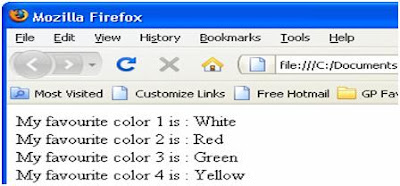


So i think the basic concept on javascript array is clear now. Now we can move forward for more on arrays.

Javascript Dynamic Array Syntax And Declaration:
In most of the times during logic building we do not want to mention or specify the array with a fixed size or length. In such cases we can create or declare an array with out mentioning the length. This array will dynamically set its value when a new variable or entry is added.

Syntax:
var thearrayname= new Array();

Now we can assign value at any position in this array as it has no length specified. We can test this by using the attribute "length".e.g:
thearrayname[3] = "Yellow";

As we have assigned a value in 3rd position the length of array will now be 4.

Javascript Arrays Builtin Functions:
The following are some standard functions that can be used only with arays:

toString():
This function converts an array to a string. Commas separate the array elements.

join(seperator):
This function is same as the toString() function. It converts an array to a string, but the seperator string separates the array elements.

sort():
This function sorts the contents of an array based upon the ASCII value.

reverse():
This function reverses the contents of an array. The last element becomes first and the first elements becomes last.

The basic syntax for using the above function is as follows:
thearrayname.function()

The following example shows how to use the various standard array functions:
<html>
<head>
<title>
Usage of javascript array built in functions
</title>
</head>
<body style="font-family:verdana;font-size:1.2em">
<br/>
<br/>
<h1>List of builtin javascript array functions</h1>
<hr>
<script language="JavaScript">
var favColor=new Array(4)
favColor[0]="White"
favColor[1]="Red"
favColor[2]="Green"
favColor[3]="Yellow"
document.write("favColor.toString() : "+favColor.toString()+"<br/><br/>");
document.write("favColor.join('') : "+favColor.join('')+"<br/><br/>");
document.write("favColor.reverse() : "+favColor.reverse()+"<br/><br/>");
document.write("favColor.sort() : "+favColor.sort()+"<br/><br/>");
</script>
</body>
</html>


This program uses the toString(), reverse(), sort() and join() functions to manipulate the contents of the array favColor.

Saturday, August 8, 2009

How to read asp radio button list selected value


Please visit my new Web Site https://coderstechzone.com


Using javascript to get the asp radio button list selected value is not an easy job like other asp.net objects. To get the selected value from asp radio button list you have to iterate through all the radio buttons in that set and then read the value for checked radio button. In my previous post i have discussed on DropdownList or ComboBox. So in this post i will try to give you a complete example on how we can read selected value or selected text from Asp RadioButtonList or from HTML input type="radio". So lets start. At first create a new aspx page. In this page i will add one Asp RadioButtonList & one HTML input type="radio" object. Also add two labels to display the Selected Value & Selected Text as well. Our targeted output should be:


If you are looking for Jquery solution then CLICK HERE.
The html code for the aspx page should be:
<body>
<form id="form1" runat="server">
<div>

<b>Asp Radio Button List:</b>
<hr />

<asp:RadioButtonList ID="Aspradiobuttonlist" runat="Server" RepeatDirection="vertical" onclick="GetRadioButtonSelectedValue();">
<asp:ListItem Text="Cosmetics" Value="1" Selected="True"></asp:ListItem>
<asp:ListItem Text="Perfume" Value="2"></asp:ListItem>
<asp:ListItem Text="Beauty Soap" Value="3"></asp:ListItem>
<asp:ListItem Text="Sunglasses" Value="4"></asp:ListItem>
</asp:RadioButtonList>

<br />
<asp:Label runat="server" ID="lblAspradiobuttonValue"></asp:Label>

<br/>
<br/>
<br/>

<b>HTML Radio Button List:</b>
<hr />

<input type="radio" name="Category" value="1" checked="checked" onclick="GetHTMLRadioButtonSelectedValue();">Cosmetics<br/>
<input type="radio" name="Category" value="2" onclick="GetHTMLRadioButtonSelectedValue();">Perfume<br/>
<input type="radio" name="Category" value="3" onclick="GetHTMLRadioButtonSelectedValue();">Beauty Soap<br/>
<input type="radio" name="Category" value="4" onclick="GetHTMLRadioButtonSelectedValue();">Sunglasses<br/>

<br />

<asp:Label runat="server" ID="lblHTMLradiobuttonValue"></asp:Label>

</div>
</form>
</body>


Ok now we have to add two javascript method for Asp RadioButtonList & HTML input type="radio" respectively.

Get Selected Value from Asp RadioButtonList:
<script type="text/javascript">

function GetRadioButtonSelectedValue()
{
var AspRadio = document.getElementsByName('Aspradiobuttonlist');

for (var i = 0; i < AspRadio.length; i++)
{

if (AspRadio[i].checked)
{
var lblAspradiobuttonValue = document.getElementById('<%= lblAspradiobuttonValue.ClientID %>');

lblAspradiobuttonValue.innerHTML='<b>Selected Value:</b> '+AspRadio[i].value+'<br/>';
lblAspradiobuttonValue.innerHTML+='<b>Selected Text:</b> '+AspRadio[i].parentNode.getElementsByTagName('label')[0].innerHTML;
}//end if

}// end for

}//end function

</script>

Get Selected Value from HTML Input Radio:
<script type="text/javascript">

function GetHTMLRadioButtonSelectedValue()
{
var HTMLRadio=document.form1.Category;

for (var i=0; i < HTMLRadio.length; i++)
{

if (HTMLRadio[i].checked)
{
var lblHTMLradiobuttonValue = document.getElementById('<%= lblHTMLradiobuttonValue.ClientID %>');
lblHTMLradiobuttonValue.innerHTML='<b>Selected Value:</b> '+HTMLRadio[i].value+'<br/>';
lblHTMLradiobuttonValue.innerHTML+='<b>Selected Text:</b> '+HTMLRadio[i].parentNode.getElementsByTagName('label')[i].innerHTML;
}// end if

}// end for

} // end function

</script>

Script tested for below browsers:
1. Internet Explorer
2. Mozilla Firefox
3. Opera
4. Google Chrome


So now you can read the Selected value or Selected Text from both Asp RadioButtonList & HTML Input Radio by using above javascript method or function.
Want To Search More?
Google Search on Internet
Subscribe RSS Subscribe RSS
Article Categories
  • Asp.net
  • Gridview
  • Javascript
  • AJAX
  • Sql server
  • XML
  • CSS
  • Free Web Site Templates
  • Free Desktop Wallpapers
  • TopOfBlogs
     
    Free ASP.NET articles,C#.NET,VB.NET tutorials and Examples,Ajax,SQL Server,Javascript,Jquery,XML,GridView Articles and code examples -- by Shawpnendu Bikash