Showing posts with label XML. Show all posts

Sunday, March 27, 2011

Validate XML aganist an XSD in Asp.Net C#


Please visit my new Web Site https://coderstechzone.com


Most of the times when we are working with XML we need to validate the XML file from an XSD file. Here i am showing an code example how one can validate XML file using an XSD in Asp.Net C#.

To do that add an aspx page in your project.


Now under Page_Load event write the below code:
using System;
using System.Xml;
using System.Text;
using System.Xml.Schema;

public partial class Validate_XML_XSD : System.Web.UI.Page
{
    private StringBuilder sB = new StringBuilder();
    protected void Page_Load(object sender, EventArgs e)
    {
        if (!IsPostBack)
        {
            string xmlPath = MapPath("MenuXML.xml");
            string xsdPath = MapPath("MenuXML.xsd");

            XmlReaderSettings settings = new XmlReaderSettings();
            settings.ValidationType = ValidationType.Schema;
            settings.Schemas.Add(null, XmlReader.Create(xsdPath));

            XmlReader Oreader = XmlReader.Create(xmlPath, settings);
            XmlDocument Odoc = new XmlDocument();
            Odoc.Load(Oreader);
            ValidationEventHandler eventHandler = new ValidationEventHandler(ValidationEventHandler);

            Odoc.Validate(eventHandler);
            if (sB.ToString() == String.Empty)
                Response.Write("Validation completed successfully.");
            else
                Response.Write("Validation Failed: " + sB.ToString());
        }
    }

    public void ValidationEventHandler(object sender, ValidationEventArgs args)
    {
        sB.Append("Error: " + args.Message);
    }  
}

Hope now you can validate XML file easily.

Creating XSD file from an XML file in Asp.Net within few seconds


Please visit my new Web Site https://coderstechzone.com


There are a lot of tools in the internet you will get to create XSD file from an XML file but you need to download then install or may be convert on-line. But there is good news that Asp.Net has built in menu to create XSD file from an XML file.


To do that first write the below XML file in VisualStudio:
<?xml version="1.0" encoding="utf-8" ?>
<Home>
  <Menu text="Books" url="MenuFromXml.aspx">
    <SubMenu text="Asp.Net" url="MenuFromXml.aspx"></SubMenu>
    <SubMenu text="Ajax" url="MenuFromXml.aspx"></SubMenu>
    <SubMenu text="MS SQL Server 2005" url="MenuFromXml.aspx"></SubMenu>
    <SubMenu text="JavaScript" url="MenuFromXml.aspx"></SubMenu>
  </Menu>
  <Menu text="Electronics"  url="MenuFromXml.aspx">
    <SubMenu text="Camera" url="MenuFromXml.aspx">
      <SubMenu text="Digital" url="MenuFromXml.aspx">
        <SubMenu text="Canon" url="MenuFromXml.aspx"></SubMenu>
        <SubMenu text="Kodak" url="MenuFromXml.aspx"></SubMenu>
        <SubMenu text="Sony" url="MenuFromXml.aspx"></SubMenu>
        <SubMenu text="Casio" url="MenuFromXml.aspx"></SubMenu>
        <SubMenu text="Fuji" url="MenuFromXml.aspx"></SubMenu>
      </SubMenu>
      <SubMenu text="Film Camera" url="MenuFromXml.aspx"></SubMenu>
    </SubMenu>
    <SubMenu text="DVDs" url="MenuFromXml.aspx">
      <SubMenu text="Comedy" url="MenuFromXml.aspx">
        <SubMenu text="English" url="MenuFromXml.aspx"></SubMenu>
        <SubMenu text="French" url="MenuFromXml.aspx"></SubMenu>
        <SubMenu text="German" url="MenuFromXml.aspx"></SubMenu>
        <SubMenu text="Spanish" url="MenuFromXml.aspx"></SubMenu>
      </SubMenu>
      <SubMenu text="Kids Movies" url="MenuFromXml.aspx"></SubMenu>
      <SubMenu text="Romance Movies" url="MenuFromXml.aspx"></SubMenu>
      <SubMenu text="Action Movies" url="MenuFromXml.aspx"></SubMenu>
    </SubMenu>
  </Menu>
  <Menu text="Contact Us" url="MenuFromXml.aspx"></Menu>
</Home>

Now you found a menu named "XML" in VS Main menu. View:

Now click on Create schema will create the below XSD file:
<?xml version="1.0" encoding="utf-8"?>
<xs:schema attributeFormDefault="unqualified" elementFormDefault="qualified" xmlns:xs="http://www.w3.org/2001/XMLSchema">
  <xs:element name="Home">
    <xs:complexType>
      <xs:sequence>
        <xs:element maxOccurs="unbounded" name="Menu">
          <xs:complexType>
            <xs:sequence minOccurs="0">
              <xs:element maxOccurs="unbounded" name="SubMenu">
                <xs:complexType>
                  <xs:sequence minOccurs="0">
                    <xs:element maxOccurs="unbounded" name="SubMenu">
                      <xs:complexType>
                        <xs:sequence minOccurs="0">
                          <xs:element maxOccurs="unbounded" name="SubMenu">
                            <xs:complexType>
                              <xs:attribute name="text" type="xs:string" use="required" />
                              <xs:attribute name="url" type="xs:string" use="required" />
                            </xs:complexType>
                          </xs:element>
                        </xs:sequence>
                        <xs:attribute name="text" type="xs:string" use="required" />
                        <xs:attribute name="url" type="xs:string" use="required" />
                      </xs:complexType>
                    </xs:element>
                  </xs:sequence>
                  <xs:attribute name="text" type="xs:string" use="required" />
                  <xs:attribute name="url" type="xs:string" use="required" />
                </xs:complexType>
              </xs:element>
            </xs:sequence>
            <xs:attribute name="text" type="xs:string" use="required" />
            <xs:attribute name="url" type="xs:string" use="required" />
          </xs:complexType>
        </xs:element>
      </xs:sequence>
    </xs:complexType>
  </xs:element>
</xs:schema>

Wow done wthin few seconds.

Friday, November 26, 2010

How to bind XML File or XML DataSource to a DataList Control in Asp.Net


Please visit my new Web Site https://coderstechzone.com


DataList control is an important control in Asp.Net applications. Most of the times we need to bind DataList control from a Database using Ado.Net datasource. But sometimes we need to bind XML file as Datasource into a DataList control. Here in this article i will demonstrate how one can bind XML data into a DataList control using the datasource XmlDataSource. The output will be:

Bind XML data into DataList controlo

To do the above example we need to write an XML file like:
<?xml version="1.0" encoding="utf-8" ?>
<Customers>
  <Customer>
    <Name>Shawpnendu Bikash Maloroy</Name>
    <Address>Uttara, Dhaka</Address>
    <City>Dhaka</City>
    <Phone>011789657</Phone>
  </Customer>
  <Customer>
    <Name>Bimolandu Bikash Maloroy</Name>
    <Address>Sonaimuri, Noakhali</Address>
    <City>Noakhali</City>
    <Phone>019789687</Phone>
  </Customer>
  <Customer>
    <Name>Purnendu Bikash Maloroy</Name>
    <Address>FirmGate, Dhaka</Address>
    <City>Dhaka</City>
    <Phone>018788767</Phone>
  </Customer>
  <Customer>
    <Name>Shadesh Chandra Chanda</Name>
    <Address>Maijdee, Noakhali</Address>
    <City>Noakhali</City>
    <Phone>015787597</Phone>
  </Customer>
  <Customer>
    <Name>Sajal Chandra Chanda</Name>
    <Address>Maijdee, Noakhali</Address>
    <City>Noakhali</City>
    <Phone>019734557</Phone>
  </Customer>
</Customers>

Now add an aspx page into your project & modify the HTML markup like below:
<%@ Page Language="C#" AutoEventWireup="true" CodeFile="DataList_XML.aspx.cs" Inherits="DataList_XML" %>

<!DOCTYPE html PUBLIC "-//W3C//DTD XHTML 1.0 Transitional//EN" "http://www.w3.org/TR/xhtml1/DTD/xhtml1-transitional.dtd">

<html xmlns="http://www.w3.org/1999/xhtml">
<head runat="server">
    <title>An Example of Binding XML Datasource into DataList Control</title>
</head>
<body>
    <form id="form1" runat="server">
    <div>
    
    <asp:DataList ID="DataList1" runat="server" DataSourceID="XmlDataSource1"> 
        <HeaderTemplate>Customer Name</HeaderTemplate>
        <ItemStyle BackColor="Gray" ForeColor="Yellow" />
        <AlternatingItemStyle BackColor="Silver" />
        <ItemTemplate>
            <%# XPath("Name")%>
        </ItemTemplate>
    </asp:DataList>
    
    <asp:XmlDataSource ID="XmlDataSource1" runat="server" 
        DataFile="Customers.xml" 
        XPath="//Customers/Customer">
    </asp:XmlDataSource>
    
    </div>
    </form>
</body>
</html>

Now run the page. Hope you will get your desired output.

Wednesday, July 28, 2010

How to bind or populate Dropdownlist from XML file


Please visit my new Web Site https://coderstechzone.com


Few days ago i got an email from one of my reader. He wants more article on XML specially on Dropdownlist. Here in this article i will explain how one can bind or populate XML data into a Dropdownlist control. Asp.net DataSet provide us a method named ReadXml where we can initially load XML file. After that we can populate Dropdownlist DataTextField & DataValueField by DataSet default view table. To do the example first add an aspx page in your project then add a Dropdownlist control. After that add an XML file like below:


<?xml version="1.0" encoding="utf-8" ?>
<Products>
  <Product>
    <ID>1</ID>
    <Name>Lux</Name>
  </Product>
  <Product>
    <ID>2</ID>
    <Name>Harpic</Name>
  </Product>
  <Product>
      <ID>3</ID>
      <Name>Dove</Name>
  </Product>
  <Product>
      <ID>4</ID>
      <Name>Sunsilk</Name>
  </Product>
  <Product>
      <ID>5</ID>
      <Name>Pentine</Name>
  </Product>
</Products>

And then under page_load event write the below code:
using System;
using System.Data;

public partial class Dropdownlist_XML : System.Web.UI.Page
{
    protected void Page_Load(object sender, EventArgs e)
    {
        if (!IsPostBack)
        {
            DataSet RS = new DataSet();
            RS.ReadXml(Server.MapPath("~/ProductList.xml"));
            
            DataView dv = RS.Tables[0].DefaultView;

            //Sorting by column name "Name" defined in XML file 
            dv.Sort = "Name";

            // Set the DataTextField and DataValueField
            DropDownList1.DataTextField = "Name";
            DropDownList1.DataValueField = "ID";

            DropDownList1.DataSource = dv;
            DropDownList1.DataBind();
        }
    }
}

Run the page to see that the Dropdownlist bind data as per XML file data.

Saturday, April 17, 2010

How to bind XML file in a TreeView control using Asp.net C#


Please visit my new Web Site https://coderstechzone.com


By using Asp.net TreeView control we can give enhanced UI experience to the user. We can specially use TreeView control to display hierarchical data like MLM tree, Sitemap. We can bind data into the TreeView control from database self referencial table as well as from a XML file. Here in this article or tutorial i am going to explain how one can bind XML data into a TreeView control as well as we will cover how to use asp.net TreeView control means its also an introduction or an introductory article to use asp.net TreeView Control. To do that please follow the below steps:

1. Add an aspx page in your project.
2. Add a XML file in your project and name this file as "ComputerItems.xml". The sample XML file is geven below:


<?xml version="1.0" encoding="utf-8" ?>
<Computer>
  
  <Item Name="Motherboard">
    <Option Value="Intel"></Option>
    <Option Value="Asus"></Option>
    <Option Value="Xbit"></Option>
  </Item>
  <Item Name="Memory">
    <Option Value="128mb"></Option>
    <Option Value="256mb"></Option>
    <Option Value="512mb"></Option>
  </Item>
  <Item Name="Harddrive">
    <Option Value="40gb"></Option>
    <Option Value="80gb"></Option>
    <Option Value="100gb"></Option>
  </Item>
  <Item Name="Soundcard">
    <Option Value="Asus"></Option>
    <Option Value="Vaio"></Option>
    <Option Value="Creative"></Option>
  </Item>

</Computer>
3. Open the aspx page in design view and drag a XMLDataSource into the page.
4. Cilck on the XMLDataSource smart menu and browse to bind the XML file like below:
XML DataSource
5. Now drag a TreeView Control and drop it into your page.
6. From TreeView Control smart menu set the XMLDataSource as DataSource like below:
Tree Datasource
7. Now from TreeView Control smart menu click on Edit TreeNode Databindings to set the XML file Item and Option value like below:
TreeView Node Binding
TreeView Value  Binding

Now your HTML marup code looks like:
<%@ Page Language="C#" AutoEventWireup="true" CodeFile="TreeView_XML.aspx.cs" Inherits="TreeView_XML" %>

<!DOCTYPE html PUBLIC "-//W3C//DTD XHTML 1.0 Transitional//EN" "http://www.w3.org/TR/xhtml1/DTD/xhtml1-transitional.dtd">

<html xmlns="http://www.w3.org/1999/xhtml" >
<head runat="server">
    <title>How to use TreeView control in ASP.NET 2.0 3.5</title>
</head>
<body>
    <form id="form1" runat="server">
    <div>
    <asp:Label runat="server" ID="lbl" Font-Bold="true" Font-Underline="true">An introduction to TreeView conrol</asp:Label>
        <br />
        <br />
        <asp:TreeView ID="TreeView1" runat="server" DataSourceID="XmlDataSource1">
            <DataBindings>
                <asp:TreeNodeBinding DataMember="Item" ValueField="Name" />
                <asp:TreeNodeBinding DataMember="Option" ValueField="Value" />
            </DataBindings>
        </asp:TreeView>
    </div>
        <br />
        <asp:XmlDataSource ID="XmlDataSource1" runat="server" DataFile="~/ComputerItems.xml">
        </asp:XmlDataSource>
    </form>
</body>
</html>
Now run the project and hope you will get below interface:
XML DataBinding
Ok thats it. Now you can bind any XML file as a datasource of a TreeView Control.

Tuesday, January 12, 2010

Read or consume RSS Feed in Asp.net 2.0/3.5


Please visit my new Web Site https://coderstechzone.com


In my first article i have explained "How you can create RSS feed using Asp.net". Here in this article i will explain how one can read or consume RSS Feed from Asp.net website. If you look at google reader then you will get a basic idea how one can Reading or Consuming RSS Feed from a RSS Feed link. I don't want to teach you the necessity of reading RSS in this article. So i want to start straight forward. Since in my first article i have created a RSS Feed so that open this project again and add another page and rename it to RSSFeedReader.aspx. In my local PC the RSS Feed link is: "http://localhost:50537/StudyProject/CreateRSS.aspx". Change it by copying the URL for CreateRSS.aspx page. Ok now everything is prepared to read or consume an RSS Feed from Asp.Net web application.


First add a server side table control in your RSSFeedReader.aspx page. So the complete HTML markup will be now:
<%@ Page Language="C#" AutoEventWireup="true" CodeFile="RSSFeedReader.aspx.cs" Inherits="RSSFeedReader" %>

<!DOCTYPE html PUBLIC "-//W3C//DTD XHTML 1.0 Transitional//EN" "http://www.w3.org/TR/xhtml1/DTD/xhtml1-transitional.dtd">

<html xmlns="http://www.w3.org/1999/xhtml" >
<head runat="server">
    <title>RSS Feed Reader</title>
</head>
<body>
    <form id="form1" runat="server">
    <div>
        
 <table cellpadding="0" cellspacing="0">
        <tr>
        <td>
    
 <table class="NormalText" runat="server" id="tbl_Feed_Reader" cellpadding="0" cellspacing="0">
        </table>
        
 </td>
        </tr>
        </table>    

    </div>
    </form>
</body>
</html>
The complete server side code is given below for Reading & Consuming RSS feed is like below:
using System;
using System.Data;
using System.Configuration;
using System.Web.UI.HtmlControls;
using System.Net;
using System.Xml;
using System.IO;


public partial class RSSFeedReader : System.Web.UI.Page
{
    protected void Page_Load(object sender, EventArgs e)
    {
        WebRequest MyRssRequest = WebRequest.Create("http://localhost:50537/StudyProject/CreateRSS.aspx");
        WebResponse MyRssResponse = MyRssRequest.GetResponse();

        Stream MyRssStream = MyRssResponse.GetResponseStream();

        // Load previously created XML Document
        XmlDocument MyRssDocument = new XmlDocument();
        MyRssDocument.Load(MyRssStream);

        XmlNodeList MyRssList = MyRssDocument.SelectNodes("rss/channel/item");

        string sTitle = "";
        string sLink = "";
        string sDescription = "";

        // Iterate/Loop through RSS Feed items
        for (int i = 0; i < MyRssList.Count; i++)
        {
            XmlNode MyRssDetail;

            MyRssDetail = MyRssList.Item(i).SelectSingleNode("title");
            if (MyRssDetail != null)
                sTitle = MyRssDetail.InnerText;
            else
                sTitle = "";

            MyRssDetail = MyRssList.Item(i).SelectSingleNode("link");
            if (MyRssDetail != null)
                sLink = MyRssDetail.InnerText;
            else
                sLink = "";

            MyRssDetail = MyRssList.Item(i).SelectSingleNode("description");
            if (MyRssDetail != null)
                sDescription = MyRssDetail.InnerText;
            else
            {
                sDescription = "";
            }

            // Now generating HTML table rows and cells based on Title,Link & Description
            HtmlTableCell block = new HtmlTableCell();
            block.InnerHtml = "<span style='font-weight:bold'><a href='" + sLink + "' target='new'>"+ sTitle + "</a></span>";
            HtmlTableRow row = new HtmlTableRow();
            row.Cells.Add(block);
            tbl_Feed_Reader.Rows.Add(row);
            HtmlTableCell block_description = new HtmlTableCell();
            block_description.InnerHtml = "<p align='justify'>" + sDescription + "</p>";
            HtmlTableRow row2 = new HtmlTableRow();
            row2.Cells.Add(block_description);
            tbl_Feed_Reader.Rows.Add(row2);
        }
    }
}

And the Output will be look like this:


So, I hope now you can Make or Create an RSS Feed as well as can read or consume RSS feed using Asp.net. Happy programming.

Tuesday, January 5, 2010

Creating RSS feed using Asp.Net 2.0 / 3.5


Please visit my new Web Site https://coderstechzone.com


RSS means Really Simple Syndication which is a Web content syndication format.

If you are looking for "Read/Consume RSS feed" article then click here.

Now let’s try to find out what RSS is about. Basically the website owner should return a RSS feed - and that's simply an XML document following a certain standard, describing new or latest articles on your site. When one copy your feeds & read it by a reader like goggle reader then reader get an overview of your latest articles. If reader wants to read details lets "How to make or create RSS Feed using Asp.net" then the reader will click on your Creating RSS Feed link which will redirect the user to your site.

So i hope now you can understand why Creating RSS feed is necessary for website or blog owner. In blog we will get RSS feed by default but for website you must need to create or make RSS feed for your regular readers so that all times they won’t visit your website to read your latest articles.

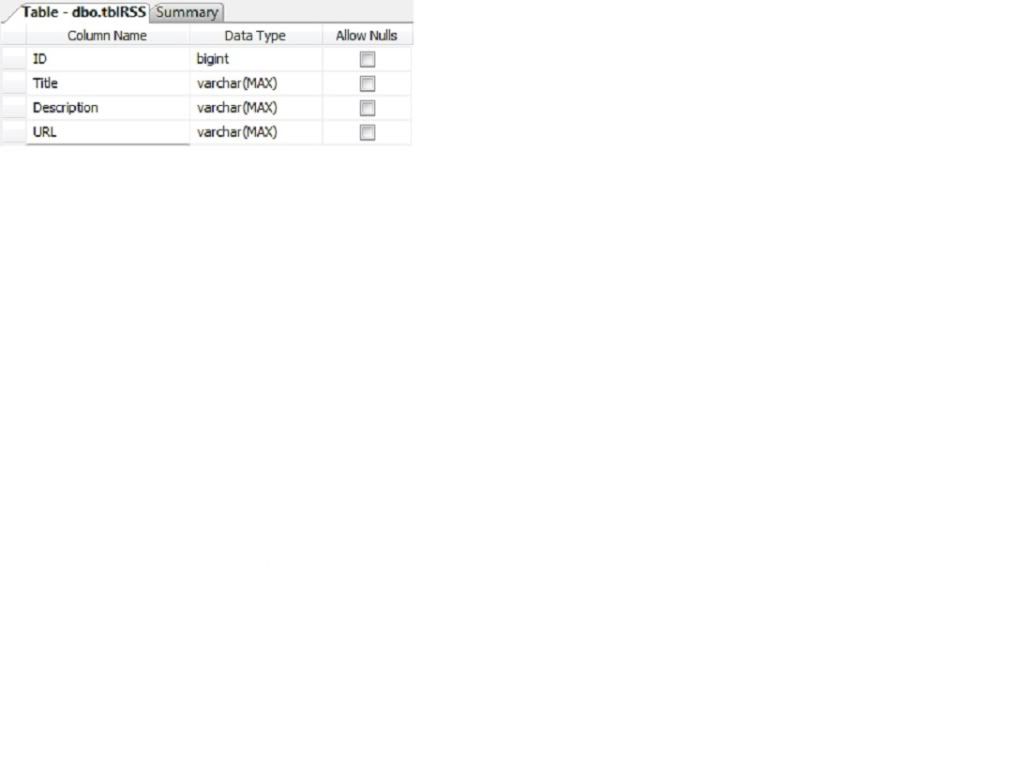
In most cases developers Create RSS feed from database. That’s why I will show you the way how we can achieve it. Since you are making or creating RSS feed from database so that you can Dynamically or Runtime create RSS feed from your aspx page. To do that first create the below table:


Fig: Table Structure

Enter some data like:


Fig: Sample data

Now create a new web site. Rename the default.aspx page to CreateRSS.aspx. Now open the CreateRSS.aspx page and add the below line just after the first line of the page:
<%@ Page Language="C#" AutoEventWireup="true"  CodeFile="CreateRSS.aspx.cs" Inherits="_Default" %>
<%@ OutputCache Duration="120" VaryByParam="*" %>
Now go to code behind & write the code under page load event to dynamically create RSS feed using Asp.Net:
using System;
using System.Data;
using System.Configuration;
using System.Data.SqlClient;
using System.Text;
using System.Xml;

public partial class _Default : System.Web.UI.Page 
{
    protected void Page_Load(object sender, EventArgs e)
    {
        string connectionString = ConfigurationManager.ConnectionStrings["TestConnection"].ConnectionString;
        DataTable dt = new DataTable();
        SqlConnection conn = new SqlConnection(connectionString);
        using (conn)
        {
            SqlDataAdapter ad = new SqlDataAdapter("SELECT * from tblRSS", conn);
            ad.Fill(dt);
        }

        Response.Clear();
        Response.ContentType = "text/xml";
        XmlTextWriter TextWriter = new XmlTextWriter(Response.OutputStream, Encoding.UTF8);
        TextWriter.WriteStartDocument();
        
        //Below tags are mandatory rss tag
        TextWriter.WriteStartElement("rss");
        TextWriter.WriteAttributeString("version", "2.0");

        // Channel tag will contain RSS feed details
        TextWriter.WriteStartElement("channel");
        TextWriter.WriteElementString("title", ".Net Mixer Free Articles");
        TextWriter.WriteElementString("link", "http://shawpnendu.blogspot.com");
        TextWriter.WriteElementString("description", "Free ASP.NET articles,C#.NET,VB.NET tutorials and Examples,Ajax,SQL Server,Javascript,XML,GridView Articles and code examples -- by Shawpnendu Bikash");
        TextWriter.WriteElementString("copyright", "Copyright 2009 - 2010 shawpnendu.blogspot.com. All rights reserved.");

        foreach (DataRow oFeedItem in dt.Rows)
        {
            TextWriter.WriteStartElement("item");
            TextWriter.WriteElementString("title", oFeedItem["Title"].ToString());
            TextWriter.WriteElementString("description", oFeedItem["Description"].ToString());
            TextWriter.WriteElementString("link", oFeedItem["URL"].ToString());
            TextWriter.WriteEndElement();
        }
        TextWriter.WriteEndElement();
        TextWriter.WriteEndElement();
        TextWriter.WriteEndDocument();
        TextWriter.Flush();
        TextWriter.Close();
        Response.End();
    }
}
Now build the project & run it hope you will get an output like below:
Create_RSS_output
So now i hope that you can runtime create RSS feed in asp.net application without help of others. In my next article i will show you how you can Read/Consume RSS feed in your asp.net aspx page.

There are more useful tags which you can use to create the RSS feed, such as the author, category or an unique ID. You found more information on Creating RSS Feed in the RSS 2.0 specification page.

Friday, June 5, 2009

DataView DataTable Creating, Adding, Modifying, Deleting, Sorting & Filtering


Please visit my new Web Site https://coderstechzone.com


In this tutorial i will discuss how we can manage DataTable object on the fly using Asp.net C#. There were a lot of scnario where we need to dynamically create a DataTable, modify, sorting & paging. Asp.net gives us the bulit in System.Data namespace to programatically manage tabular data in runtime. Note that the DataTable can be bound to any data Web control just like a DataSet or DataReader as a datasource. When binding a DataTable to a data Web control, in actuality, the default DataTable is is used as a datasource to that control like GridView, Repeater, Dropdown List etc.

Focus Area:
1. Create a DataTable
2. Modify a DataTable
3. Delete From a DataTable
4. Filtering, Sorting & Copy one DataTable to Another
5. Use Aggregate Functions
6. Create Computed Columns
7. Create XML file from a DataTable
8. DataView Sorting, Filtering, Binding
9. Bind the DataTable with GridView & Dropdown List


Create a DataTable:
To create a DataTable in runtime first instantiate the DataTable object then add columns with data types & then assign values to create rows.

DataTable oTable = new DataTable("Article");

//Add DataTable column dynamically/run time/on the fly.
oTable.Columns.Add(new DataColumn("ID", typeof(System.Int64)));
oTable.Columns.Add(
new DataColumn("Title", typeof(System.String)));
oTable.Columns.Add(
new DataColumn("Published", typeof(System.DateTime)));

//Add DataTable rows dynamically/run time/on the fly.
oTable.Rows.Add(1001, "DataTable Engineering", DateTime.Now);
oTable.Rows.Add(1002,
"Event Calendar", DateTime.Now);
oTable.Rows.Add(1003,
"Master Detail Data", DateTime.Now);

// Bind GridView Data from dynamically created DataTable
GridView1.DataSource = oTable;
GridView1.DataBind();

Modify a DataTable:
You can modify any row's or column's data by specifying the row's index or column's index. Also you can access all values by iterative statement.

//By specifying column index
oTable.Rows[0][0] = 1000;

//By Specifying column name
oTable.Rows[1]["Title"] = "Event Calendar in Asp.net";
oTable.AcceptChanges();

//Iterate

foreach
(DataRow oItem in oTable.Rows)
Response.Write(oItem[0].ToString() +
" " + oItem[1].ToString() + " " + oItem[2].ToString()+"</br>");
//OR
for(int i=0;i<oTable.Rows.Count;i++)
Response.Write(oTable.Rows[i][0].ToString() +
" " + oTable.Rows[i][1].ToString() + " " + oTable.Rows[i][2].ToString() + "</br>");

Delete From a DataTable:
You can runtime delete any row from the DataTable directly. One thing you have to keep in mind that you will get "Deleted row information cannot be accessed through the row" error if try to iterate through rows without use AcceptChanges() just after deletion.

oTable.Rows[1].Delete();
oTable.AcceptChanges();

GridView1.DataSource = oTable;
GridView1.DataBind();

Filtering, Sorting & Copy one DataTable to Another:
You can apply filter to a DataTable by Select() method. This method will take two argument. The first one is FilterExpression & 2nd one is Sort Expression. You knew the in Asp.net object will take same reference when you assign an object to another. Which causes same impact on both objects. We can remove the reference by using the Clone() method. Have a look:

DataRow[] oRows = oTable.Select("ID>500", "Title DESC");

// Create oTable DataTable structure to OTable2 object
DataTable oTable2 = oTable.Clone();

// Now assign the rows data
foreach (DataRow oItem in oRows)
oTable2.Rows.Add(oItem.ItemArray);

GridView1.DataSource = oTable2;
GridView1.DataBind();
For an Example on Clone() method Click Here.

Use Aggregate Functions:
In this example here i will show you how you can working with Aggregate Functions in a DataTable. To do that DataTable provide us a method named Compute() which will take two parameters "String Expression", "String Filter". Within "String Expression" we can apply the Aggregate function & in "String Filter" we can apply our required filterings. You will receive Evaluate Expression error "Cannot find column [xxxx]" if you provide wrong column name in Aggregate function.

DateTime LastPublished = Convert.ToDateTime(oTable.Compute("MAX(Published)", "Published > 'Jan 01, 2005'"));
Response.Write(LastPublished.ToString(
"MMM dd, yyyy"));

int
RowCount = Convert.ToInt32(oTable.Compute("COUNT(Title)", "Published > 'Jan 01, 2005'"));
Response.Write(RowCount.ToString());

Create Computed Columns:
You can add runtime a summary or status column in a DataTable. Which will minimize your effort dramatically. Let i want to display a column in the GridView that does this article published in this year or not. For such type cases we can use Expression property which save iur valuable time.

oTable.Columns.Add("This Year?", typeof(System.Boolean));
oTable.Columns[3].Expression =
"Published > 'Jan 01, 2010'";

GridView1.DataSource = oTable;
GridView1.DataBind();

Create XML file from a DataTable:
Asp.net provide us a method named WriteXmlSchema to create runtime or on the fly XML file.

// Just one line code Convert DataTable to XML Schema
//Check the root folder for the XML file
oTable.WriteXmlSchema(Server.MapPath(".")+"/XMLFile.xml");
For Security issues Click Here.

DataView Sorting, Filtering, Binding:
DataView is the top of a DataTable. From the above post i discussed a lot of issues on DataTable. Now i will show you how we can easily create a DataView, apply filtering as well as sorting. I also show you a most common usage like "Convert DataTable to DataView" & "Convert DataView to DataTable".

// Convert DataTable to DataView
DataView dView = new DataView(oTable);

// Sorting DataView
dView.Sort = " ID DESC, Title ASC";

//Filtering DataView
dView.RowFilter = "Published > 'Jan 01, 2010'";

// Convert DataView to DataTable
DataTable
oTable3 = dView.Table;

// Bind DataView as a DataSource
GridView1.DataSource = dView;
GridView1.DataBind();

Bind the DataTable with GridView & Dropdown List:
I have already discussed how to bind a DataTable or DataView to a GridView control. For DropdownList Click Here.

Creating XML document runtime in Asp.net C#


Please visit my new Web Site https://coderstechzone.com


Due to the popularity of XML file most of the times we need to create XML file in runtime. In this post i will show you a simple example how we can create XML file programatically. By using this example you can also make XML file dynamically from SQL Server Database table by iterating across the rows. To make the XML on the fly first add System.Xml namespace in your project. Then create a declaration, a root element first and create elements sequentially. The example code is given below:

protected void Page_Load(object sender, EventArgs e)
{
XmlDocument writer = new XmlDocument();
// Create XML declaration
XmlNode declaration = writer.CreateNode(XmlNodeType.XmlDeclaration, null, null);
writer.AppendChild(declaration);

// Make the root element first
XmlElement root = writer.CreateElement("Article");
writer.AppendChild(root);

//Creating the <Asp.net> element
XmlElement aspnet = writer.CreateElement("Asp.net");
root.AppendChild(aspnet);

//Creating attributes of <Asp.net> element
XmlAttribute id = writer.CreateAttribute("Id");
id.Value =
"0001";
aspnet.Attributes.Append(id);

XmlAttribute
title = writer.CreateAttribute("Title");
title.InnerText =
"Bind Dropdown List";
aspnet.Attributes.Append(title);

XmlAttribute
visit = writer.CreateAttribute("Visit");
visit.InnerText =
"985";
aspnet.Attributes.Append(visit);

XmlAttribute
modified = writer.CreateAttribute("Modified");
modified.InnerText =
"Jan 01, 2009";
aspnet.Attributes.Append(modified);

// Now save/write the XML file into server root location
//Server.MapPath(".") is used to find the root path
writer.Save(Server.MapPath(
".") + "//XMLFile.xml");
}
* Don't forget to add the namespace System.Xml

Ok now we found a XMLFile.xml in our application root directory. Click here to view how we can bind this XML file into GridView. So now we can programatically create a XML file & also we can use it in our application.

For permission related issues Click here.

Tuesday, May 26, 2009

How to bind a XML file to a GridView using Asp.net C#


Please visit my new Web Site https://coderstechzone.com


Recently one of the most popular data source is XML. For simplicity developer wants to make an XML file since its easy to use in the Asp.net built in data controls like GridView. In this post i will try to show you how one can bind easily XML file as a data source of GridView control. In the later section i will discuss how to bind XML file to a GridView control in run time.

Focus Area:
1. Bind XML file in design mode
2. Bind XML file programetically


Bind XML file in design mode:
To run this example at first add an XML file in your project & keep the name XMLFile.xml. Now modify the XML in the following way:

<?xml version="1.0" encoding="utf-8" ?>
<
Article>
<
Asp.net Id="0001" Title="Bind Dropdown List" Visit="985" Modified="Jan 01, 2009">
</
Asp.net>
<
Asp.net Id="0002" Title="Event calendar" Visit="777" Modified="Feb 01, 2009">
</
Asp.net>
<
Asp.net Id="0003" Title="Select all checkboxes" Visit="853" Modified="Mar 01, 2009">
</
Asp.net>
<
Asp.net Id="0004" Title="Transfer data between" Visit="957" Modified="Apr 01, 2009">
</
Asp.net>
</
Article>

Now add a GridView control in your page. The next step is to click the GridView control's smart tag and select from the Choose Data Source dropdown list. This opens the Data Source Configuration Wizard, as shown in below:


Now click on browse button to set a Data File. Bydefault you found that our previously cretaed XMLFile.xml is selected. So just click OK--OK. Now run the project. Hope you will get the output page like below:


In Configuration data source wizard you saw that i keep blank Transform file & Xpath expression. You can set the Transform file value by your XSLT & use Xpath expression to bind the selected node from your XML file.

To bind an XML file runtime into a GridView using Asp.net you can follow the below code:
protected void Page_Load(object sender, EventArgs e)
{
DataSet XMLDataSet;
string FilePath = Server.MapPath("Your XML File HERE");
XMLDataSet = new DataSet();

//Read the contents of the XML file into the DataSet
XMLDataSet.ReadXml(FilePath);
GridView1.DataSource = XMLDataSet.Tables[0].DefaultView;
GridView1.DataBind();
}

Happy programming.
Want To Search More?
Google Search on Internet
Subscribe RSS Subscribe RSS
Article Categories
  • Asp.net
  • Gridview
  • Javascript
  • AJAX
  • Sql server
  • XML
  • CSS
  • Free Web Site Templates
  • Free Desktop Wallpapers
  • TopOfBlogs
     
    Free ASP.NET articles,C#.NET,VB.NET tutorials and Examples,Ajax,SQL Server,Javascript,Jquery,XML,GridView Articles and code examples -- by Shawpnendu Bikash