Showing posts with label C#. Show all posts

Thursday, September 16, 2010

How to merge two or more files using C#


Please visit my new Web Site https://coderstechzone.com


Few days ago i have a requirement to make a processing engine which will download, decode & staging almost 70k+ ASN files. So that i have developed an ASN Decoder using Turbo C. Then make a DLL to use this decoder in my C# project. Everything is good but one problem is that my processing exe will take almost 6 hours to process all files. After reviewing my source code i found that each time my ASN Decoder DLL open a single file then decode it then close the file & also create a csv file for bulk insert into my database. I took a decission to reduce the time for open & closing a file. How i can do it? I made it by merging two or more or mutiple ASN files in a single file. So that my DLL need to open almost 1/3rd of files than earlier & my procesiing now takes only 2 hours. If you are facing such type of problem then you can follow my way.


C# Source code for merging mutiple files:
private void Form1_Load(object sender, EventArgs e)
        {
            string sASN1 = @"11.asn";
            string sASN2 = @"22.asn";

            FileStream FStream1 = null;
            FileStream FStream2 = null;

            FStream1 = File.Open(sASN1, FileMode.Append);
            FStream2 = File.Open(sASN2, FileMode.Open);
            byte[] FStream2Content = new byte[FStream2.Length];
            fs2.Read(FStream2Content, 0, (int)FStream2.Length);
            FStream1.Write(FStream2Content, 0, (int)FStream2.Length);

            MessageBox.Show("Merging Successfully ended!");

            FStream1.Close();
            FStream2.Close();
        }


Happy coding !!

Tuesday, June 15, 2010

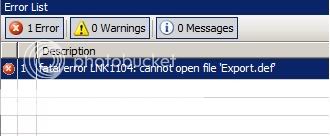
VC++ fatal error LNK1104: cannot open file 'Export.def'


Please visit my new Web Site https://coderstechzone.com


When you want to create a DLL file to use in C# windows application or from other applications then you may experience the below error:

fatal error

Exception: fatal error LNK1104: cannot open file 'xxx.def'

Reason:
You define the definition file from Project--> Project Properties. But the project won't get the definition file in the project path.

Solution:
Create or copy the definition file into the project root path.

Error: Unable to find an entry point named 'xxx' in DLL 'yyy.dll'


Please visit my new Web Site https://coderstechzone.com


To access any DLL file from C# windows application or from other application an entry point is required. Otherwise you will get the below exception:

Entry point not found exception

Unable to find an entry point named 'xxx' in DLL 'yyy.dll'
OR
Entry point not found exception / error.

When you create any DLL file in VC++ from a turbo C program then you must have create a definition file where you will define the DLL entry point. You have to create the Definition file within the root folder. This will not resolve your problem. To resolve the problem go to the Project--> Project Properties and define the definition file in the following way:

define entry point

Hope now you can resolve the problem.

Sunday, June 13, 2010

Make Turbo C DLL to use in C# windows application


Please visit my new Web Site https://coderstechzone.com


In some cases of our professional life we need to parse or decode or handle large number of file. As you knew that for IO purpose turbo C is faster than other technologies like dot net or something else. In my cases i need to develop an ASN decoder where i need to decode more than million of files. In such cases i need to develop a ASN decoder. In my cases i have done the following way:

1. Create a Turbo C program which will decode ASN files.
2. Convert the Turbo C program to a DLL to use in C# windows application.
3. After that upload data into the SQL Server/Oracle database.

Here in this article i will explain only how one can create a DLL file created in Turbo C and then use this DLL file in C# windows application. Steps were given below:


1. Create a Turbo C program Like below:
#include<stdio.h>
#include<conio.h>

int ADDs(int num1,int num2)
{
 return num1+num2;
}

int Subtract(int num1,int num2)
{
  return num1-num2;
}

void main()
{
 //printf("%d",ADDs(10,10));
}

2. Now open Visual Studio 2005.
3. Go to File--> New --> Project.
4. Now configure Language= VC++ and from templates select Win32 Project like below:

VC++ Project

5. Now type the name of the DLL and then click on OK.
6. Now click on Next.
7. Select Application Type=DLL like below:
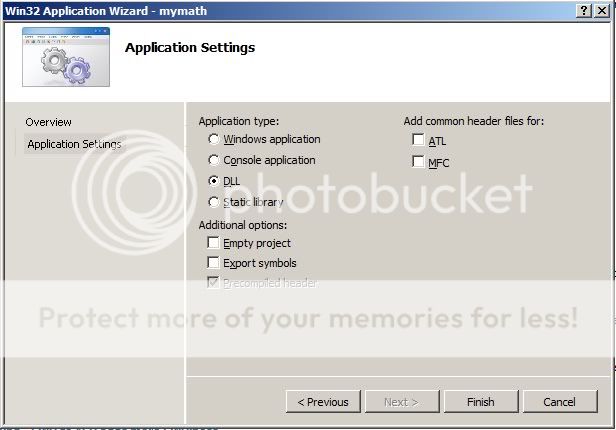
VC++ Application Type

8. Now click Finish.
9. Now write the two function ADDs and Subtract in the following way:
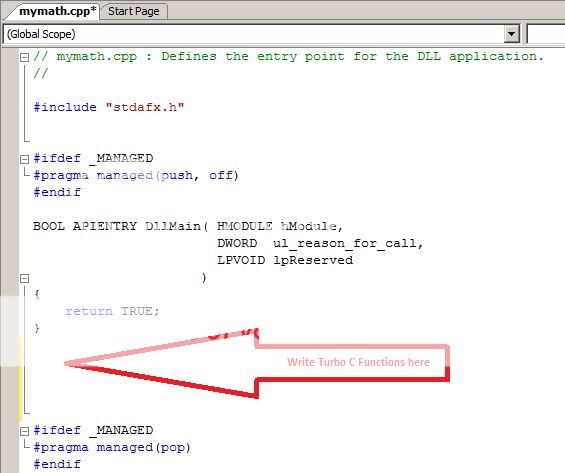
VC++ Application Type

10. Now your VC++ code window will like below:
#include "stdafx.h"


#ifdef _MANAGED
#pragma managed(push, off)
#endif

BOOL APIENTRY DllMain( HMODULE hModule,
                       DWORD  ul_reason_for_call,
                       LPVOID lpReserved
      )
{
    return TRUE;
}


int ADDs(int num1,int num2)
{
 return num1+num2;
}

int Subtract(int num1,int num2)
{
  return num1-num2;
}


#ifdef _MANAGED
#pragma managed(pop)
#endif
11. Now we need to create a definition file.
12. Now go to File-->New-->File. You will get below window:
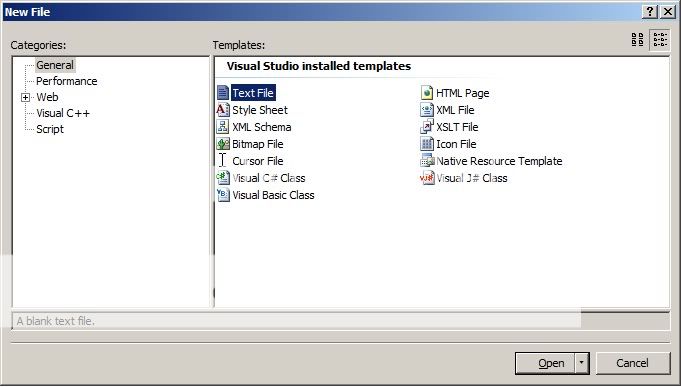
DLL Definition File

13. Save the file as Export.def in the project root folder.
14. Now write the below content in Export.Def file:
LIBRARY "mymath"
EXPORTS
  ADDs
  Subtract

Or

Right cilck on mymath solution. Click Add-->New Item like below:

Def File

15. Now go to the Project--> Project Properties and define the Export.def file in the following way:
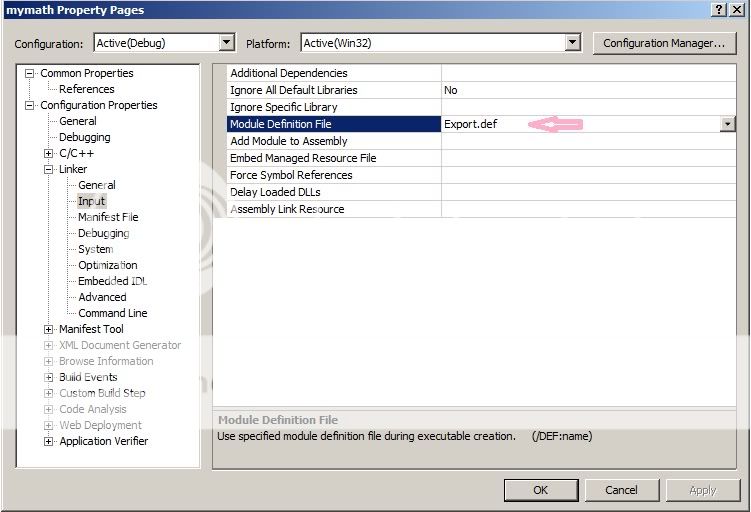
Define definition file

16. Now build your project.
17. Go to the debug folder and copy the mymath.dll file into your system32 folder.
18. Now create an C# windows application. Within the form Add two textboxes and one command button.
19. Now under button click event write below sample code:
private void button1_Click(object sender, EventArgs e)
        {
            int a=Adds(Convert.ToInt32(textBox1.Text), Convert.ToInt32(textBox2.Text));
            MessageBox.Show(a.ToString());
        }
20. Don't forget to import DLL as well as including using System.Runtime.InteropServices; So full code will be:
using System;
using System.Collections.Generic;
using System.ComponentModel;
using System.Data;
using System.Drawing;
using System.Text;
using System.Windows.Forms;
using System.Runtime.InteropServices;

namespace WindowsApplication1
{
    public partial class Form1 : Form
    {
        [DllImport("mymath.dll")]
        public static extern int Adds(int Num1, int Num2);

        public Form1()
        {
            InitializeComponent();
        }

        private void button1_Click(object sender, EventArgs e)
        {
            int a=Adds(Convert.ToInt32(textBox1.Text), Convert.ToInt32(textBox2.Text));
            MessageBox.Show(a.ToString());
        }
    }
}

21. Now run the project. Hope you will get your desired output.

Tuesday, June 8, 2010

Run-Time Check Failure #2 - Stack around the variable 'hexByte' was corrupted


Please visit my new Web Site https://coderstechzone.com


If you are going to develop any game or decoder then you may experience this error. Today when i am developing an ASN decoder for our company i faced the error below:

Run-Time Check Failure #2 - Stack around the variable 'hexByte' was corrupted.

To develop my decoder first i need to develop a turbo C program. Then convert this code into a DLL. When i am calling the dll function from my C# windows application i found this error. The screenshot is given below:

DLL Error

Basically for example this will happen if you are going to write to an invalid address. Mostly this comes from something like this.
char hexByte[5];
hexByte[6] = 'E';

Then when you leave from function scope system will freeing the variable hexbyte then system will prompt this error that the variable is corrupted because you wrote to an invalid address.

So check the variable that is stated in your error message & increase the size of the array will resolve your problem.

Thursday, June 3, 2010

ERROR: Items collection cannot be modified when the DataSource property is set


Please visit my new Web Site https://coderstechzone.com


Basically we get this error when we try to add a data into the combobox after binding the combobox by using datasource property. If we use to bind data in this way comboBox1.Items.Add then we didn't get any error. But if we want to add data after binding then we will get below error:

Items collection cannot be modified when the DataSource property is set.


Screenshot is given below:

Combobox Error

Lets try to make this error. After that we will resolve this problem. To make this error first add a form in your project then add a combobox control within this form & run the below code:
private void Form1_Load(object sender, EventArgs e)
        {
            DataTable oTable = new DataTable("Article");

            //Add DataTable column dynamically/run time/on the fly.
            oTable.Columns.Add(new DataColumn("ID", typeof(System.Int64)));
            oTable.Columns.Add(new DataColumn("Title", typeof(System.String)));

            //Add DataTable rows dynamically/run time/on the fly.
            oTable.Rows.Add(1001, "DataTable Engineering");
            oTable.Rows.Add(1002, "Event Calendar");
            oTable.Rows.Add(1003, "Master Detail Data");

            comboBox1.DataSource = oTable;
            comboBox1.DisplayMember = "Title";

            // this line will generate error 
            comboBox1.Items.Insert(0, "Select");
        }


Here you can test by using a database for simplicity i use datatable.

Now solution:
In such type of scenario i always modify the datasource like datatable first. After that i bind this datasource into the combobox. So to resolve this problem my workaround is given below:
private void Form1_Load(object sender, EventArgs e)
        {
            DataTable oTable = new DataTable("Article");

            //Add DataTable column dynamically/run time/on the fly.
            oTable.Columns.Add(new DataColumn("ID", typeof(System.Int64)));
            oTable.Columns.Add(new DataColumn("Title", typeof(System.String)));

            //Add DataTable rows dynamically/run time/on the fly.
            oTable.Rows.Add(1001, "DataTable Engineering");
            oTable.Rows.Add(1002, "Event Calendar");
            oTable.Rows.Add(1003, "Master Detail Data");

            // Use insertAt method to force to enter data
            DataRow oRow = oTable.NewRow();
            oRow["Title"] = "Select";
            oTable.Rows.InsertAt(oRow, 0);


            comboBox1.DataSource = oTable;
            comboBox1.DisplayMember = "Title";
        }

Happy coding.

Sunday, May 30, 2010

Insert bulk data into oracle using SQLLoader in C#


Please visit my new Web Site https://coderstechzone.com


Sometimes we need to insert a large volume of data into the Oracle database. Sometimes data comes from comma seperated csv file or from a comma seperated text file. By reading this article you can insert data from both source to oracle. There are mainly two ways to insert bulk data into Oracle:

1. Using Bindarray
2. Using SqlLoader

Here in this article i will explain how one can use to insert bulk data from text file or csv file into oracle
using SQLLoader.

To do that please follow the below steps:

1. Create a folder in your c: drive and named it WorkingFolder.
2. Create a controller file in the WorkingFolder using below code:
LOAD DATA
INFILE DataOut.txt
BADFILE dataFile.bad
APPEND INTO TABLE SASN
FIELDS TERMINATED BY ',' OPTIONALLY ENCLOSED BY '"' 
(CDR_Type,Rec_Type)
And name this file by "Ctrl.txt".
3. Now create a text file which contins data like below:
1,2
3,4
5,6
And name this file "DataOut.txt".
4. Now create a sample table in oracle like below:

Oracle Table

5. Now from your c# project run the below sample code:
Process proc = new Process();
            string myCommand = @"CMD.EXE";
            proc.StartInfo = new ProcessStartInfo(myCommand);
            
            //Set up arguments for CMD.EXE
            proc.StartInfo.Arguments = @"/c SQLLDR User/Password@Schema CONTROL=C:\WorkingFolder\Ctrl.txt";

            proc.StartInfo.RedirectStandardOutput = true;

            proc.StartInfo.RedirectStandardError = true;

            proc.StartInfo.UseShellExecute = false;

            proc.StartInfo.WorkingDirectory = @"c:\WorkingFolder\";
            proc.Start();
            proc.WaitForExit();

            if (proc.ExitCode == 0) // Successfully completed
                MessageBox.Show("Successfully Inserted");
            
            else
                MessageBox.Show(proc.StandardError.ReadToEnd());

6. Now run the above code & hope you will get below output:

SQLLoader Output
Want To Search More?
Google Search on Internet
Subscribe RSS Subscribe RSS
Article Categories
  • Asp.net
  • Gridview
  • Javascript
  • AJAX
  • Sql server
  • XML
  • CSS
  • Free Web Site Templates
  • Free Desktop Wallpapers
  • TopOfBlogs
     
    Free ASP.NET articles,C#.NET,VB.NET tutorials and Examples,Ajax,SQL Server,Javascript,Jquery,XML,GridView Articles and code examples -- by Shawpnendu Bikash