Showing posts with label Windows XP. Show all posts

Tuesday, February 28, 2012

Can not open Task Manager of Windows remote desktop session?


Please visit my new Web Site https://coderstechzone.com


Some times we need to open remote desktop session Task Manager from our workstation or PC. I think every one will try to open by ALT+CTRL+DEL. But you can not because it open your current desktop Task Manager. But there is a simple tricks you can apply to open the Remote desktop session Task Manager which is ALT+CTRL+END.

Its working am i right? Now you can kill any hanged process or open Explorer. In my cases i need most of the time to kill the explorer of my working server. After closing the explorer from Task Manager and you will close the Task Manager window then you have no way to open the remote desktop session Task Manager without the HOT KEY ALT+CTRL+END.

If you still can't open then apply CTRL + SHIFT + ESC.

Both hot key will work on Windows Server 2003, Windows Server 2008, XP, Windows 7 Etc.

Another reason to apply this tricks is: Lets say you have 5 session of a server. One of them needs to close
the explorer but you can not identify which session you need to close. At that moment its also work for you.

For a practical example CLICK HERE.

Hope it will help you.

Wednesday, December 7, 2011

Activate your inactive utility folder option task manager


Please visit my new Web Site https://coderstechzone.com


Sometimes in Windows operating system we did not found some utilities like:


1. Folder Option
2. Task Manager
3. Control Panel
4. System Restore
5. Run Menu
6. Context Menu
7. My Computer
8. Search Option
9. Command Console
10. Registry Editor
11. MS Configure

This will happen due to virus attack.

Solution:
One software named Re-Enable will help you to activate inactive utility as per your requirement. Download the Re-Enable software from here.

Its a small software which size is only 773 kb. Its a portable software so no need installation. So you can use this free software in your office laptop easily.

Now open the software & select the utilities whichever you want. Now click on Re-Enable button.

Hope now your inactive utilities will be active. Its easy !!!

You can also use the software for below purposes:

1. Detecting autorun.inf virus
2. Repairing Desktop
3. Change folder attributes

Use this software like charm.

Speed up or keep active the RAM activity


Please visit my new Web Site https://coderstechzone.com


In using of Windows most of the times system creates page files which will act like virtual memory. But those virtual files may not clear automatically when you shut down the PC or Laptop which slows the RAM speed eventually. You can automatically or forcefully remove or delete the virtual files when shutting down your computer.

To do this follow the below steps:

1. Go to Start then Control Panel
2. Select Administrative Tools

3. Select Local Security Policy
4. Select Security Settings
5. Select Local Policies
6. Select Security Options
7. Go to the right hand side "Shutdown : Clear Virtual Memory Page File" & click twice on this option & enable the option
8. Now click on OK button

Now virtual files will be automatically deleted in every shutdown & your RAM speed will be increase surely.

Sometimes also do the below practice:

1. Go to RUN
2. Now type Tree
3. Press Enter

Do the above job sometimes & hope it will also increase your RAM performance.

Can not delete file Now delete file easily


Please visit my new Web Site https://coderstechzone.com


In maximum time virus or for other problems like:

1. The file is in use by another program or user
2. The source or destination file may be in use
3. Make sure the disk is not full or write-protected and that the file is not currently in use
4. Cannot delete file: Access is denied

You may not delete a file easily. For such type of problem the shortest solution is "FileASSASSIN". FileASSASSIN is a free software which you can download from here. Now install it in your system. To delete a file open the software first then choose the problematic file through Browse button or drop the file using mouse. Now if you directly delete the file then checked the "Delete File" option. Else if you want to keep the file but want to keep the file inactive then do not check the option "Delete File" option. At last click on Execute button. Hope now your problem will be resolved. The snapshot of FileAssassin is given below:

This file is used by another program or user


Solution no 2:
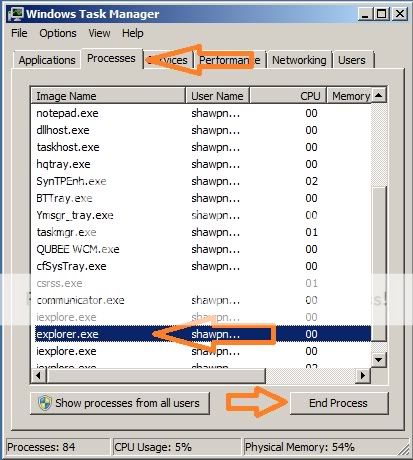
1. Start Task Manager
2. Click on Processes Tab
3. Select Explorer.exe

Make sure the disk is not full or write-protected

4. Click on "End Process" - Now your every window will be closed
5. Do not close the Task Manager
6. Now click on File-->New Task (Run..)
7. Now write "Explorer" on Open: input box
8. Now click on OK
9. Now one window is open - browse the problematic file and delete the file normally

Hope your problem will be resolved.

Tuesday, April 13, 2010

Error: Cannot delete file because it's being used by another person or program


Please visit my new Web Site https://coderstechzone.com


Sometimes you may getting the error when attempting to delete a file which is used by another program or user. In this case you can not rename,move or delete this file or folder.

The error like:
Cannot remove folder xxxxxx: It is being used by another person or program.Close any programs that might be using the file and try again.

And the screen like below:
Error Cannot remove folder

Solution:
1. Try to findout which program have a chance to use this file/folder close it and then try to remove this folder or file.

2. Wait a few minutes & then refresh the window & then try to delete because sometimes Windows or the program using the file may still be closing.

3. Open the task manager click on Applications tab & check does any program uses this file or not? If found any then close it & try again.

4. Go to the processes tab & try to find does any process lock this folder or file? If found then close it and try again. In my cases most of the times i found this problem like let i have a process named abc.exe. After getting this error i close ABC.exe so in the Application tab i didnot found ABC.Exe. But in the processes tab i found abc.exe is still running even you closed earlier. So check it from your end.

5. Close all explorer & window & open files then try again.

6. Restart the PC & try again.

7. If still doesnot resolve or rebooting is not possible(if server) then use the thirdparty software to remove this file or folder named Unlocker.

Tuesday, December 15, 2009

Change Windows startup and shutdown sounds or music


Please visit my new Web Site https://coderstechzone.com


You may does not like the default Windows startup and shutdown sounds, those are just simple music & after hearing in most the times you may borred. Thats why you may think to change your Windows startup & shutdown music that i will explain in this post step by step.

One another nice thing is one can also change other music or sounds in windows such as error sound, new hardware insert sound, empty recycle bin sound and more! To do that you can take one of your favourite mp3 which you like to hear as default windows sound.

You have to do two extra job like firts cut a portion of your selected mp3 then convert it into wav format. To cut the portion of your mp3 you can use freeware like Audacity to chop up the music. You can use a free software like JetAudio, Media-Convert to convert your audio files into WAV format. But keep in mind that the size must be less than or eqal to 1MB. It will better if you keep the size within 500KB.

Step 1: Choose your favourite mp3 song.
Step 2: Cut two portion that you like for startup & shutdown music.
Step 3: Convert mp3 portions to WAV format.
Step 4: Rename these files to Windows XP Startup.wav and Windows XP Shutdown.wav respectively.
Step 5: Now click on My Computer and go to C:\Windows\Media. Here you will found the files Windows XP Startup.wav and Windows XP Shutdown.wav along with a lot of other windows sounds like error, empty reccyle bin etc.
Fig: Location of files

Step 6: Now copy the two files into another location so if your settings does not work then you can revert back.
Step 7: Now copy your two files that you have made & paste into the C:\Windows\Media folder and restart your computer to take place the changes.Now you should hear the new music or songs or sounds rather than the default sound.

If you don't like other Windows default sounds then you can alos change those by using exactly the ways that i have described.

It's really simple to change the Windows login and logoff sounds. So hope now you can do it.

Saturday, December 12, 2009

Display hidden files when Folder Options Removed by Virus


Please visit my new Web Site https://coderstechzone.com


Some viruses play a hide & seek role with windows users By removing the folder options sub menu from Tools menu. Then user cried that they had lost their valuable files where as the virus just hide those as hidden or system files. Such type of virus mainly came from Indonesia. Basically they are not harmful for your computer except they hide your valuable files & modify the registry to hide the Folder Options from Tools menu.

If you do not found the Folder Options Menu from Tools menu then you can take the below steps.

Step by step figures to recover hidden files:
1. Click on start menu.
2. Click on Run.
3. Type regedit & press Enter.

Fig: Covered up to step 3.

4. Find HKEY_CURRENT_USER node & expand it.

Fig: Covered Step up to 4.

5. Now find Software node & expand it.
6. Now Find Microsoft node & expand it.


Fig: Covered up to Step 6

7. Now go to Windows\Currentversion\Explorer node.
8. Now click on Advannced node.
9. Now double click on Hidden link from right side list.


Fig: Covered up to Step 9.

10. Now change 0 to 1 in Value data field.
11. Now click on OK.

Fig: The End.

Hope now you can view all hidden files from windows even spam or trozan or virus remove Folder Options from your computer Windows XP.
Want To Search More?
Google Search on Internet
Subscribe RSS Subscribe RSS
Article Categories
  • Asp.net
  • Gridview
  • Javascript
  • AJAX
  • Sql server
  • XML
  • CSS
  • Free Web Site Templates
  • Free Desktop Wallpapers
  • TopOfBlogs
     
    Free ASP.NET articles,C#.NET,VB.NET tutorials and Examples,Ajax,SQL Server,Javascript,Jquery,XML,GridView Articles and code examples -- by Shawpnendu Bikash